Tags, Search, and Lineage#
Search#
Hopsworks supports free-text search to discover machine-learning assets:
- features
- feature groups
- feature views
- training data
- jobs, including apps
- models
- deployments, including agents
You can use the search bar at the top of your project to free-text search for the names or descriptions of any ML asset. You can also search using keywords or tags that are attached to an ML asset.
Tags are indexed for every asset in the list above, so a governance question can be asked once across the whole set rather than per asset type. Keywords apply to feature groups, feature views and training data only, so a keyword filter never matches a job, a model or a deployment.
Apps and agents are reported as their own classes but are not stored as their own kind of asset. An app is a job whose type is PythonApp, and an agent is a deployment serving no registered model. Each is a narrowing of the class it belongs to, which is why they need no separate index and appear the moment the distinguishing property does.
You can search for assets within a specific project or across all projects in a Hopsworks deployment, including those you are not a member of. This allows for easier discoverability and reusability of assets within an organization. To avoid users gaining unauthorized access to data, if a search result is in a project you are not a member of, the information displayed is limited to: names, descriptions, tags, asset creator and create date. If the search result is within a project you are a member of, you are also able to inspect recent activities on the asset as well as statistics.
Searching across projects you are not a member of is on by default. An administrator running a multi-tenant deployment can turn it off, which restricts every search to the projects the caller can already access. See search index administration for the setting.
For how to use search, including filtering by a specific tag key and value, see the search guide.
Tags#
A keyword is a single user-defined word attached to an ML asset. Keywords can be used to help it make it easier to find ML assets or understand the context in which they should be used, for example, PII could be used to indicate that the ML asset is based on personally identifiable information.
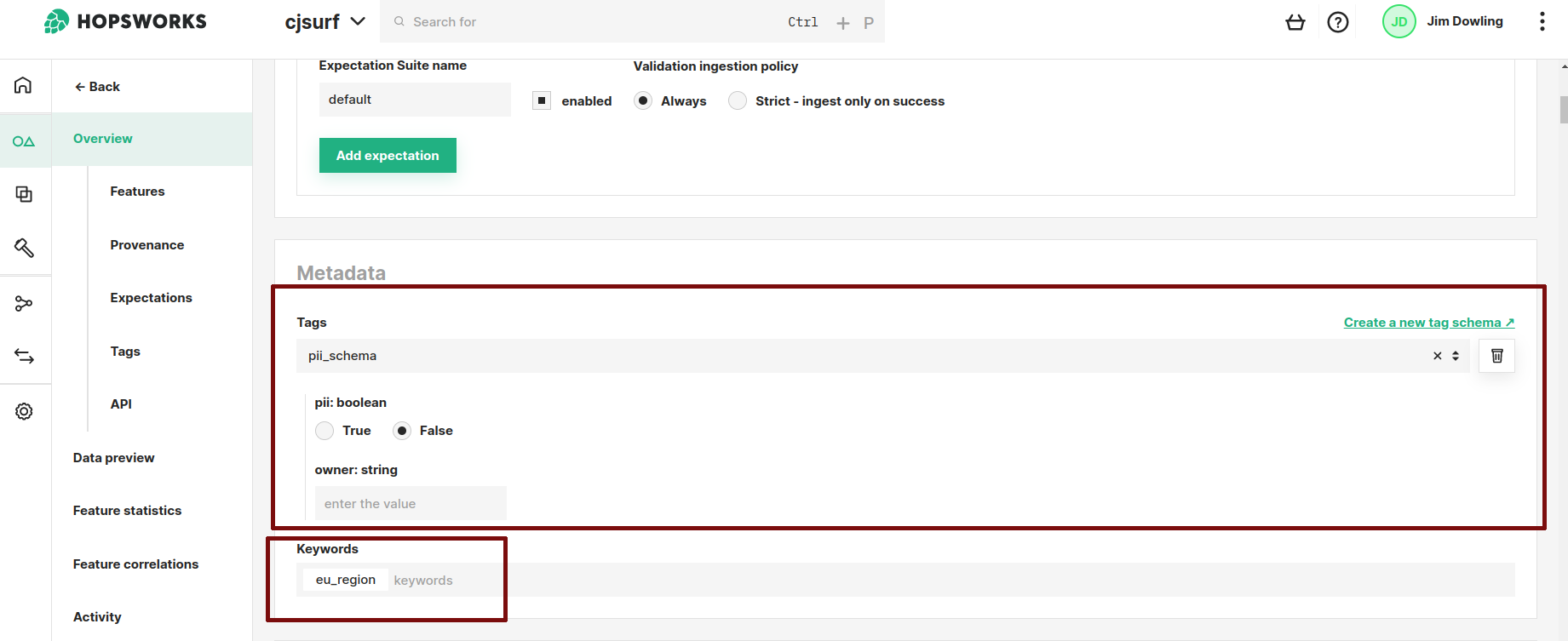
However, it may be preferable to have a stronger governance framework for ML assets than keywords alone. For this, you can define a schematized tag, defining a list of key/value tags along with a type for a value. In the figure below, you can see an example of a schematized tag with two key/value pairs: pii of type boolean (indicating if this feature group contains PII data), and owner of type string (indicating who the owner of the data in this feature group is). Keywords are not part of a schematized tag and are not shown in this panel. They are attached in the feature group header instead, for example a eu_region keyword indicating the data has its origins in the EU.
Schematized tags can also enforce policy, not just aid discovery. You could, for example, require that a model cannot be created in the production model registry unless its EU AI Act tag is filled in correctly.
Lineage#
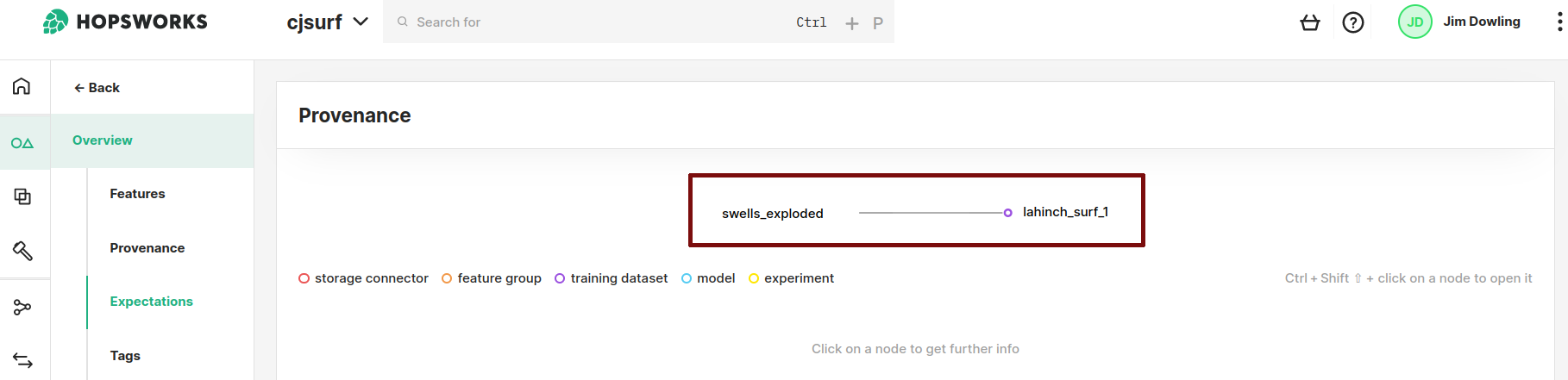
Hopsworks tracks the lineage (or provenance) of ML assets automatically for you. The lineage chain runs end to end: data source, feature group, feature view, training data, model, deployment. This is what makes governance answerable: from a biased model you can trace back to the exact feature groups and data sources that fed it. You can see what features are used in which feature view or training dataset, and what training dataset was used to train a given model. For assets that are managed outside of Hopsworks, there is support for the explicit definition of lineage dependencies.
The lineage of an asset is shown in the Hopsworks UI, here the feature groups behind a feature view and the training data and models derived from it.