Superset#
As a Hopsworks administrator, you can manage the Apache Superset integration, which provides data visualization and business intelligence capabilities. Superset enables users across all projects to create interactive dashboards, explore data through SQL queries, and build advanced visualizations on top of feature data stored in Hopsworks.
Accessing Superset Admin#
The Superset admin interface is accessible from the Hopsworks cluster settings. In Cluster Settings, choose Superset under External in the left sidebar to access administrative controls for the Superset deployment.

From this interface, you can manage users, roles, and configure Superset settings that apply across all Hopsworks projects.
Superset Overview#
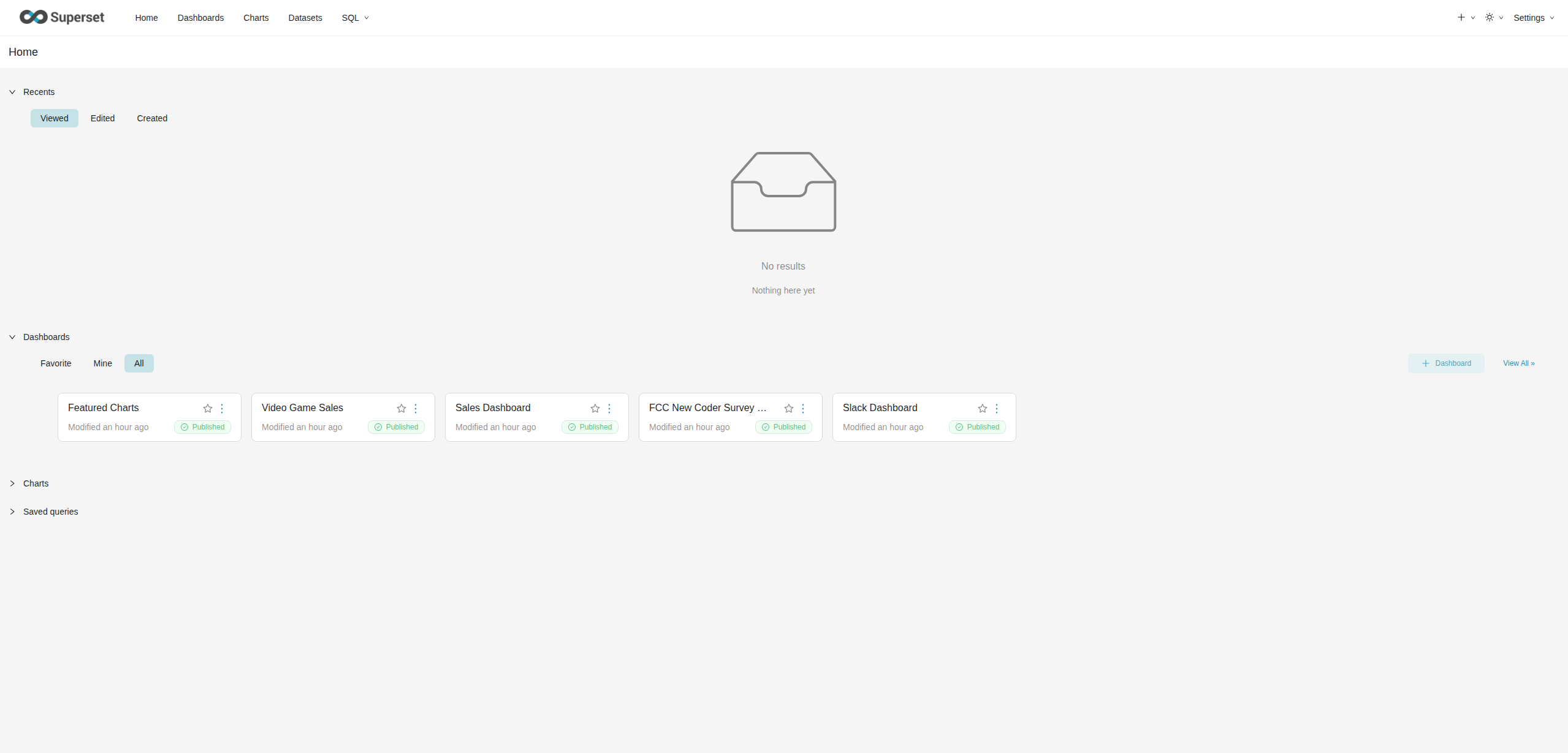
Once you access the Superset interface, you will see the main dashboard that provides access to:
- Dashboards: Interactive visualizations created by users across projects
- Charts: Individual visualization components
- Datasets: Configured data sources from Hopsworks Feature Store
- SQL Lab: Interactive SQL query interface for data exploration
Managing Users#
The user management interface allows you to view and manage all Superset users across the cluster. Navigate to Settings → Users in the Superset interface (or by navigating to https://<hopsworks-domain>/hopsworks-api/superset/users/) to access user administration.
User Overview#
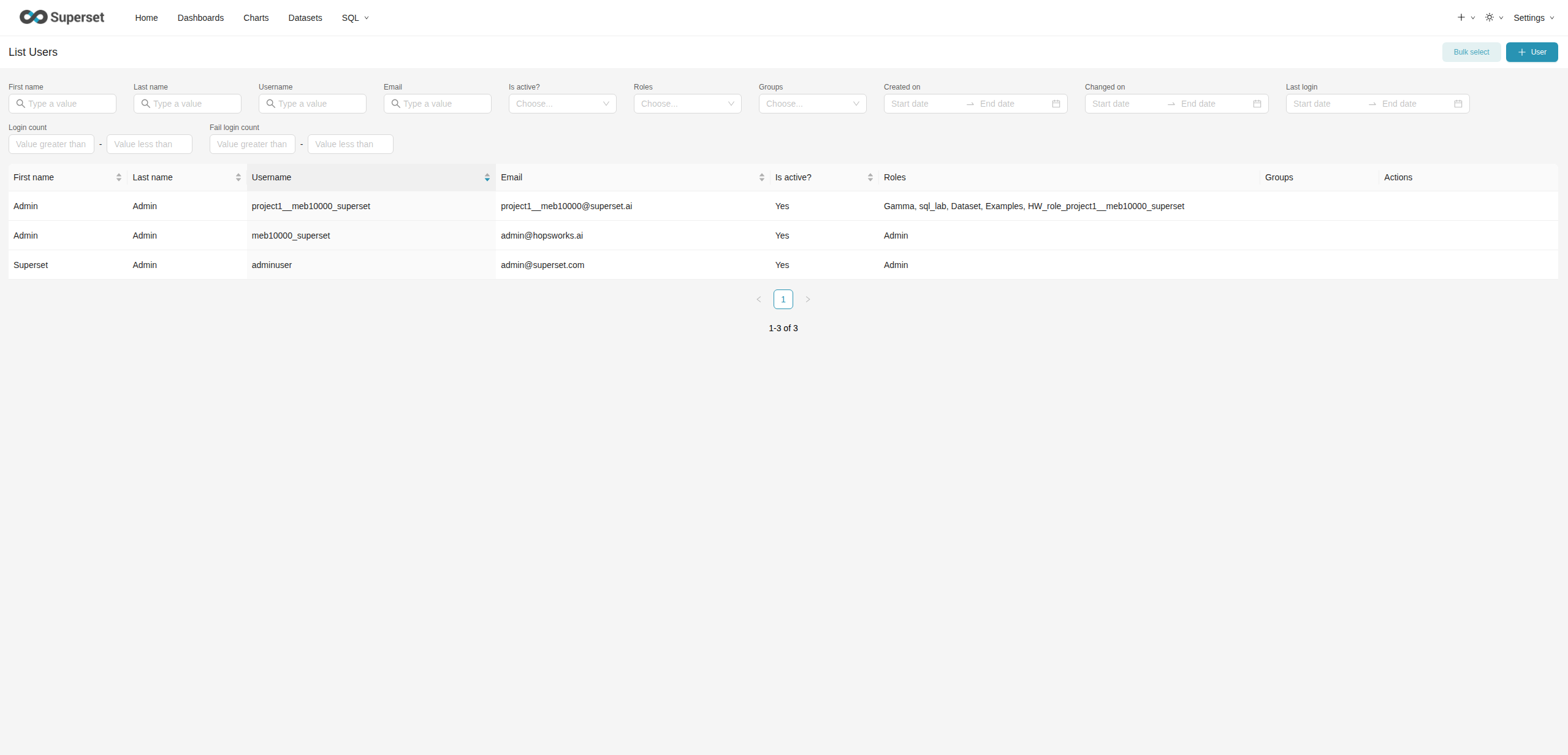
The users list displays:
- First name and Last name: User identity information
- Username: Unique identifier for each user
- Email: Auto-generated email
- Is active?: Whether the user account is enabled
- Roles: Assigned roles determining permissions
- Groups: Group memberships for organizational access control
- Actions: Edit or delete user
User Integration with Hopsworks#
Superset users are automatically synchronized with Hopsworks project members. When users are added to a project, their accounts are created automatically with appropriate permissions.
For each Hopsworks user in a project, a corresponding Superset user is created with the naming pattern <project_name>__<username>_superset. This per-user-per-project mapping ensures proper data isolation and access control between projects.
Managing Roles#
Roles define the permissions and capabilities available to Superset users. Navigate to Settings → Roles (or by navigating to https://<hopsworks-domain>/hopsworks-api/superset/roles/) to manage role configurations.
Default Roles#
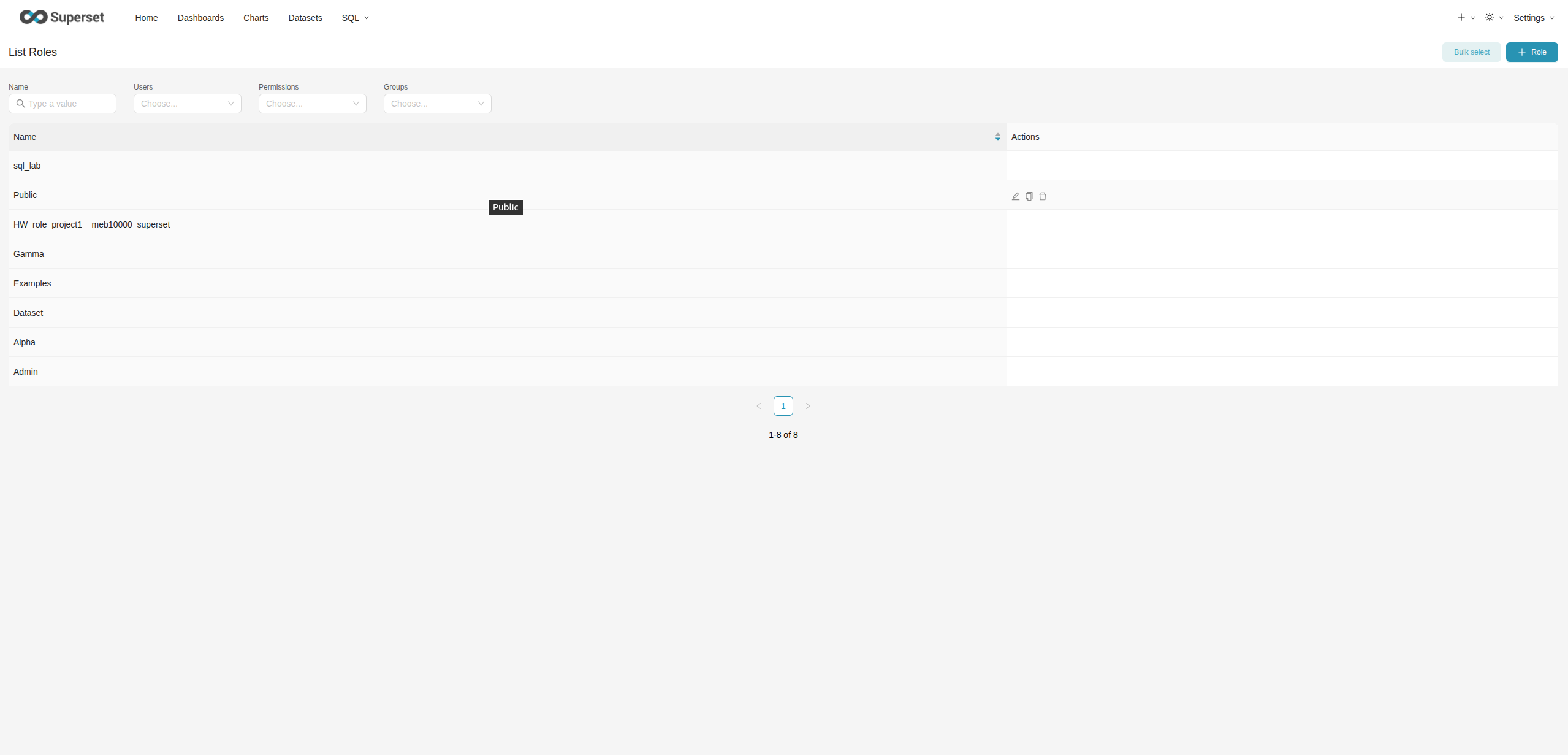
Superset in Hopsworks includes several pre-configured roles:
- Admin: Full administrative access to all Superset features
- Alpha: Can create and edit all content types
- Gamma: Read-only access to dashboards and charts
- sql_lab: Access to SQL Lab for query execution
- Public: Minimal read-only access for public dashboards
- Examples: Role for example dashboards and datasets (added only if
superset.loadExamplesis set totrue) - Dataset: Role for dataset management
Project- and User-Specific Roles#
Each Hopsworks project user has a dedicated Superset role with the naming pattern HW_role_<project_name>__<username>_superset that controls access to that project's data sources. These roles are automatically created and managed by Hopsworks to maintain proper access control and data isolation.
Database Connections#
Superset uses database connections to access data from the Hopsworks Feature Store. Database connections are created automatically based on project configuration and Feature Store setup.
Navigate to Settings → Database connections in the Superset interface to view and manage database connections.

Connection Types#
Hopsworks projects can have up to two database connections, created based on Feature Store configuration:
Online Feature Store Connection (MySQL)#
- Naming pattern:
<project_name>__<username>_superset - Backend: MySQL
- Purpose: Access to the Online Feature Store for exploration
- Use cases: Real-time dashboards, monitoring online features
- Created when: An Online Feature Store is created in the project
Offline Feature Store Connection (Trino)#
- Naming pattern:
Trino__<project_name>__<username>_superset - Backend: Trino
- Purpose: Access to the Offline Feature Store for analytical queries
- Use cases: Historical analysis, training data exploration, complex aggregations
- Created when: Trino is enabled for the project
- Multi-catalog: Enabled. The connection is created with Superset's Allow changing catalogs option turned on, so users can pick any Trino catalog (
hive,delta,iceberg,hudi) from the Catalog selector in SQL Lab and when adding a dataset, rather than being limited to the one set intrino_default_catalog.
Connection Properties#
Database connections support various capabilities indicated in the connections list:
- AQE (Asynchronous Query Execution): Whether the connection supports async queries (false by default)
- DML (Data Manipulation Language): Whether INSERT/UPDATE/DELETE operations are allowed (true by default)
- File upload: Whether data can be uploaded directly through this connection (false by default)
- Expose in SQL Lab: Whether the connection is available in SQL Lab interface (true by default)
Managing Connections#
Database connections are automatically created and configured by Hopsworks. Manual connection management is typically not required, but administrators can:
- View connection details and properties
- Monitor connection usage and performance
- Test connection availability
- Modify advanced connection settings if needed
Configuration#
Superset behavior can be customized through Hopsworks cluster configuration variables. In Cluster Settings, choose Configuration under Infrastructure in the left sidebar and search for superset to view all Superset-related variables.

Available Variables#
superset_admin_roles#
- Description: Comma-separated list of Superset roles Hopsworks Admins should be assigned.
- Default:
Admin - Format: Comma-separated list of role names
- Superset roles listed here are assigned to Hopsworks Admins.
superset_enabled#
- Description: Enable or disable Superset cluster-wide
- Default:
false - Values:
trueorfalse - When set to
false, Superset becomes unavailable for all projects across the cluster.
superset_proxy_connect_timeout_ms#
- Description: Time the Hopsworks proxy waits to establish a connection to Superset, in milliseconds.
- Default:
10000 - Format: Integer
superset_proxy_connection_request_timeout_ms#
- Description: Time the Hopsworks proxy waits for a connection from its pool, in milliseconds.
- Default:
10000 - Format: Integer
superset_proxy_max_connections#
- Description: Maximum number of connections the Hopsworks proxy keeps open to Superset.
- Default:
50 - Format: Integer
superset_proxy_read_timeout_ms#
- Description: Time the Hopsworks proxy waits for a response from Superset, in milliseconds.
- Default:
180000 - Format: Integer
- Raise this if long running SQL Lab queries are cut off by the proxy.
superset_user_roles#
- Description: Default roles automatically assigned to new Superset users
- Default:
Gamma,sql_lab,Dataset - Format: Comma-separated list of role names
- These roles determine the initial permissions granted to users when they first access Superset from a project.
trino_default_catalog#
- Description: Default catalog to use for the Offline Feature Store Connection
- Default:
hive - Values:
hive,delta,iceberg, andhudi.
Trino connections are created with multi-catalog enabled (Superset's Allow changing catalogs option), so users are not limited to this default. They select the catalog matching their table format from the Catalog dropdown in SQL Lab or when adding a dataset. Querying a table whose format does not match the selected catalog raises a Trino UNSUPPORTED_TABLE_TYPE error; see the Trino table type error troubleshooting in the Superset user guide.
Applying Configuration Changes#
After modifying any configuration variable:
- Click Save next to the variable to save the change
- Verify the change has taken effect by checking Superset behavior
- Monitor Superset logs for any configuration-related errors
Configuration Best Practices#
- Limited admin access: Only grant
superset_admin_rolesto trusted administrators - Role defaults: Set
superset_user_rolesto provide appropriate baseline permissions - Testing changes: Test configuration changes in a development environment first
- Documentation: Document any custom configuration changes and update your Helm values accordingly.