How-To set up an AWS Glue Data Source#
Introduction#
The Glue Data Source integrates with the AWS Glue Data Catalog. It points at a Glue database backed by Amazon S3, where the data always lives. For this reason the Glue Data Source provides the same S3 credentials (access_key, secret_key, session_token, region) as the S3 Data Source. This works for any data format: Apache Iceberg, Delta Lake and Apache Hudi, as well as plain file formats such as csv and parquet.
How the Glue Data Catalog itself is used depends on the format:
- Iceberg: the catalog owns the table's current-metadata pointer, so reads and writes are mediated by the catalog (the table is addressed by
<database>.<table>). - Delta and Hudi: the on-path transaction log or timeline stays authoritative; the catalog is a discoverability mirror that is registered on create and synced on write so external engines (Athena, EMR, ...) can find the table by name.
- Plain file formats (
csv,parquet, ...): the Data Source is used only for S3 access; nothing is registered in the catalog.
In this guide, you will configure a Data Source in Hopsworks to save all the authentication information needed in order to set up a connection to your AWS Glue database. When you're finished, you'll be able to read tables using Spark through Hopsworks APIs, and to create managed feature groups whose offline data is stored in the Glue-registered location on S3.
Note
Currently, it is only possible to create data sources in the Hopsworks UI. You cannot create a data source programmatically.
Prerequisites#
Before you begin this guide you'll need to retrieve the following information from your AWS Glue and S3 setup:
- Database: You will need the name of the Glue database that contains, or will contain, your tables.
- Region: You will need the AWS region in which the Glue Data Catalog and the backing S3 bucket reside. The region is identified by its code.
- Authentication Method: You can authenticate using Access Key/Secret, or use IAM roles. If you want to use an IAM role it either needs to be attached to the entire Hopsworks cluster or Hopsworks needs to be able to assume the role. See IAM role documentation for more information. The credentials must grant access both to the Glue Data Catalog and to the backing S3 bucket.
Creation in the UI#
Step 1: Set up new Data Source#
Head to the Data Sources view on Hopsworks (1) and click New data source (2). The Add a data source catalog opens below. Pick the AWS Glue card to open the creation form. The card is only offered where the connector is supported, so it is absent or disabled on non-cloud clusters.

Step 2: Enter Glue Settings#
Enter the details for your Glue connector.
- The form opens with
Sourceset toAWS Glue. ClickChange sourceto pick a different one. - Give the data source a name and an optional description.
- Set the name of the Glue database you want to point the connector to.
- Optionally set the Catalog ID, the AWS account ID that owns the Glue Data Catalog. Leave it empty to use the catalog of the account the credentials belong to.
- Optionally set the AWS region of the Glue Data Catalog and its backing S3 bucket.
- Choose the Authentication method, see the options below.
- Optionally add Spark options as key-value pairs to pass to the Spark context at runtime.
- Click on "Save Credentials".
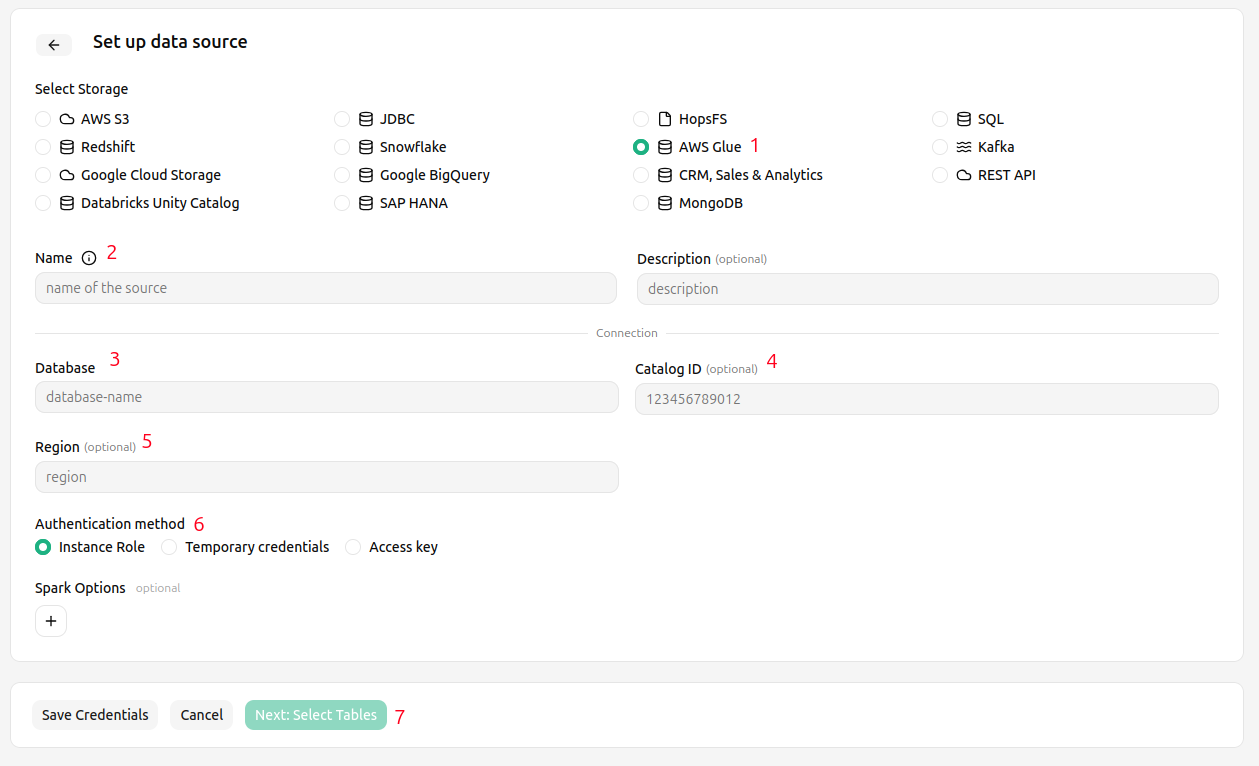
The credentials must grant access both to the Glue Data Catalog and to the backing S3 bucket. The available authentication methods are the same as for the S3 Data Source:
Instance Role#
Choose instance role if you have an EC2 instance profile attached to your Hopsworks cluster nodes with a role which grants access to the Glue Data Catalog and the backing S3 bucket.
Temporary Credentials#
Choose temporary credentials if you are using AWS Role chaining to control the access permission on a project and user role base. Once you have selected Temporary Credentials select the role that gives access to the Glue Data Catalog and the backing S3 bucket. For this role to appear in the list it needs to have been configured by an administrator, see the AWS Role chaining documentation for more details.
Session Duration
By default, the session duration that the role will be assumed for is 1 hour or 3600 seconds. This means if you want to use the data source for example to write training data to S3, the training dataset creation cannot take longer than one hour.
Your administrator can change the default session duration for AWS data sources, by first increasing the max session duration of the IAM Role that you are assuming. And then changing the fs_data_source_session_duration configuration variable to the appropriate value in seconds.
Access Key/Secret#
The most simple authentication method are Access Key/Secret, choose this option to get started quickly, if you are able to retrieve the keys using the IAM user administration.
Feature group path#
When creating a feature group from this Data Source and the Glue database has a location, the feature group path is generated automatically by appending the new table to that database location, so no path needs to be set. The database location is the Location set on the Glue database in the AWS console.
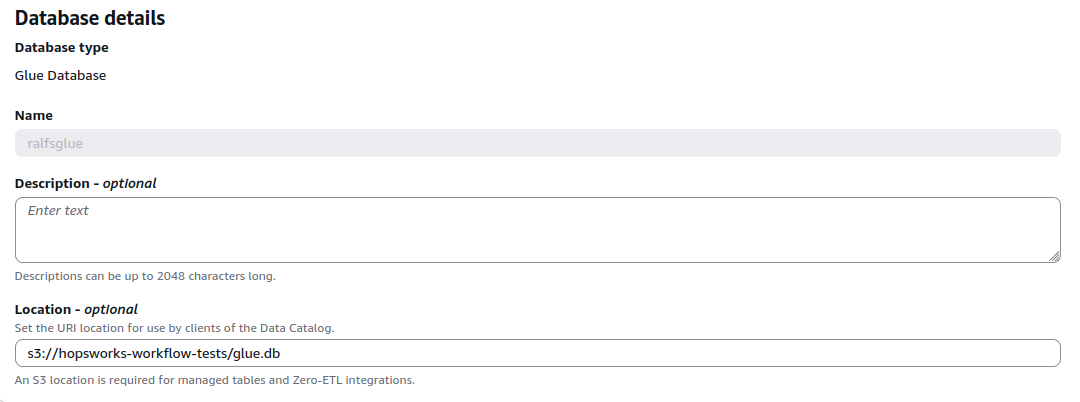
Otherwise, the path must be set explicitly on the data source, for example:
An explicitly set path always takes precedence over the generated one.
Direct Spark or PyIceberg access#
For direct Spark or PyIceberg access outside the feature group APIs, the Data Source supplies the matching catalog properties. See GlueConnector.catalog_options (Spark) and GlueConnector.pyiceberg_catalog_options (PyIceberg).
Next Steps#
Move on to the usage guide for data sources to see how you can use your newly created Glue connector.