How-To set up a REST API Data Source#
Introduction#
The REST API data source lets you connect Hopsworks to external HTTP APIs. You can use it to store the base connection details, optional headers, and the authentication method required by the target API.
In this guide, you will configure a REST API Data Source in the Hopsworks UI.
Note
Currently, it is only possible to create data sources in the Hopsworks UI. You cannot create a data source programmatically.
Prerequisites#
Before you begin, make sure you have:
- A unique name for the data source in Hopsworks.
- The Base URL of the target API.
- Any headers you want to send with requests.
- The authentication details required by the target API.
Creation in the UI#
Step 1: Set up new Data Source#
Head to the Data Sources view on Hopsworks (1) and click New data source (2). The Add a data source catalog lists the available sources, grouped under Object storage, Data warehouse, Database, Streaming and API & SaaS. Pick the REST API card to open the creation form.

Step 2: Enter REST API settings#
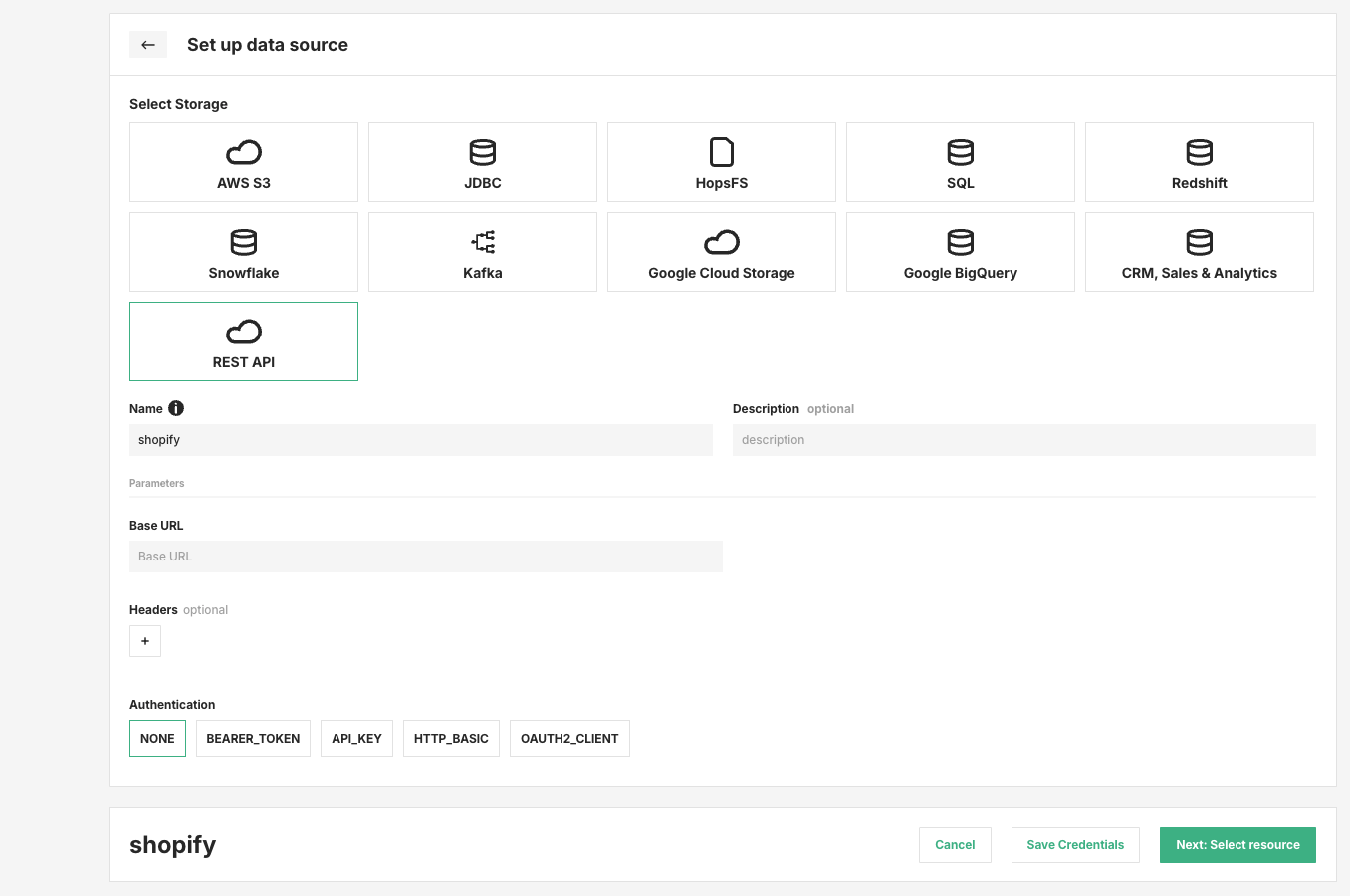
The form opens with Source set to REST API, and Change source takes you back to the catalog. Provide the common connection settings shown in the form:
- Name: A unique name for the data source.
- Description: Optional description.
- Base URL: The base endpoint for the external API.
- Headers: Optional header key-value pairs. Use the
+button to add headers. - Authentication: Select the authentication mode required by the API.
The following authentication modes are available in the UI:
NONEBEARER_TOKENAPI_KEYHTTP_BASICOAUTH2_CLIENT
Note
The screenshot shows the form with NONE selected. When you choose another authentication mode, the form will prompt for the additional credentials required by that method.
Step 3: Save the credentials#
After entering the connection details:
- Click Save Credentials.
- Click Next: Select resource to continue configuring the data source for downstream use.
Next Steps#
Move on to the usage guide for data sources to see how you can use your newly created REST API data source.