How To Import a Model from HuggingFace#
Introduction#
In this guide you will learn how to import a model from the HuggingFace Hub directly into the Hopsworks Model Registry. The download runs server-side, the files stream straight into HopsFS under the project's Models dataset, and the model version is registered with a framework that Hopsworks auto-detects from the repository's metadata and file list.
Availability
This feature is part of the Data Science profile and is only available when the DATA_SCIENCE_PROFILE feature flag is enabled on the cluster. You also need the Data Scientist or Data Owner project role.
UI flow#
Step 1: Open the Model Registry#
From the project sidebar, open Data Science → Model Registry. The list page shows all models registered in this project.
Step 2: Start a HuggingFace import#
Click the Import from HuggingFace button in the toolbar at the top of the model list. A modal opens asking for the model identifier.
Step 3: Enter the model ID (and token, if needed)#
- Model ID or URL (required). Accepts either a plain
owner/reposlug (e.g.Qwen/Qwen2.5-0.5B) or the full HuggingFace URL (e.g.https://huggingface.co/Qwen/Qwen2.5-0.5B). - Access token (optional). Only needed for gated or private repositories. See HuggingFace's access token docs for how to create one.
Gated models
If the model requires an access token and you don't supply one, the import fails fast and the modal prompts you to paste a token and retry, so no download time is wasted.
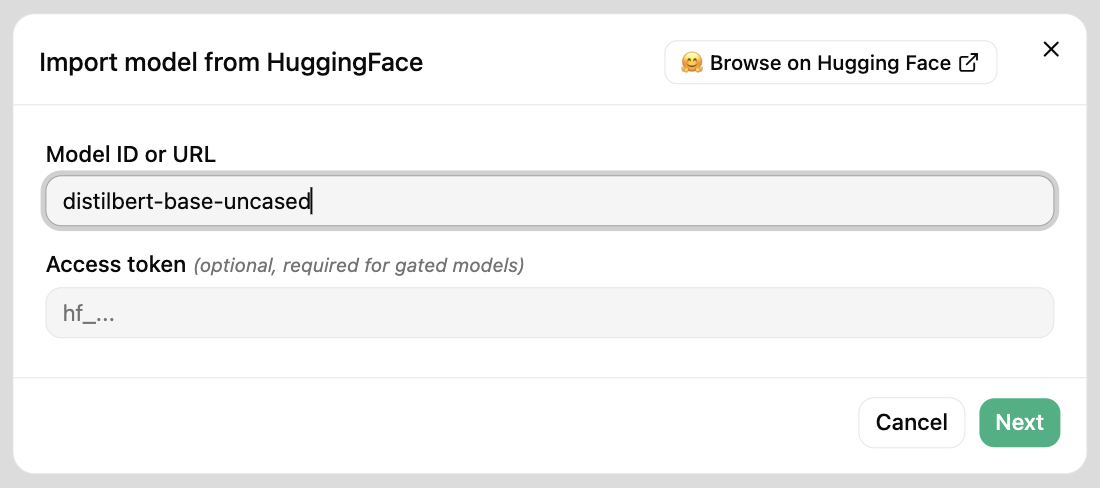
Click Next to inspect the repo on HuggingFace.
Step 4: Choose which weight formats to import#
Many HuggingFace repos ship the same weights in several interchangeable formats (Safetensors, PyTorch, TensorFlow, Flax, GGUF, ONNX, OpenVINO, Core ML, TensorFlow Lite). Downloading all of them wastes HopsFS storage and bandwidth, and typically you only need one.
The modal shows a checkbox for each weight format detected in the repo, with the following default precedence pre-selected:
- Safetensors
- PyTorch (
pytorch_model*.bin) - TensorFlow (
tf_model.h5,saved_model.pb) - Flax (
flax_model*.msgpack) - Otherwise the first format found (GGUF, ONNX, OpenVINO, Core ML, TensorFlow Lite)
You can tick additional formats if you need more than one. Config, tokenizer, README and other small auxiliary files are always imported regardless of your selection.
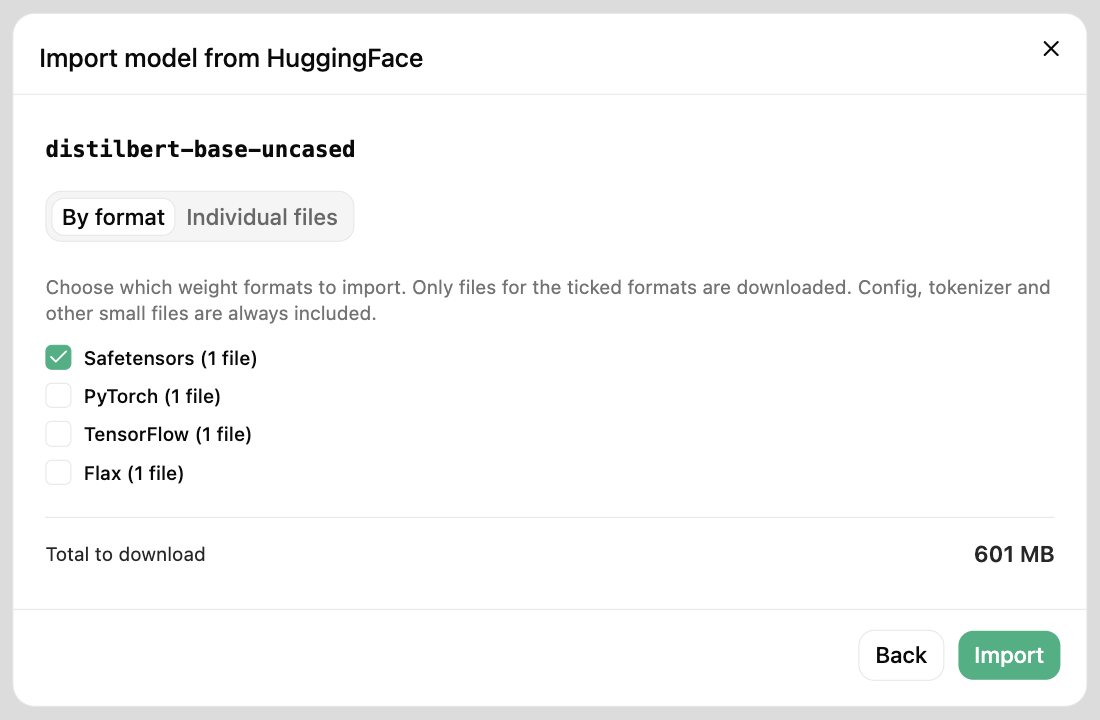
Quantization variants#
Some repos, most commonly GGUF builds from unsloth, ship the same weights in several quantizations. The variants can be packaged either as files (Qwen-Q4_K_M.gguf, Kimi.IQ4_XS.gguf) or as subdirectories named after the quant (UD-Q2_K_XL/, UD-Q4_K_XL/).
When variants are detected the modal adds a second checkbox group ("Quantization variant"). Tick the variants you want: files belonging to unticked variants are skipped. Files that don't carry a variant tag (e.g., the root README or a base GGUF in the repo root) are not affected by the variant filter.
The recogniser knows the common llama.cpp / unsloth tags: BF16, F16, F32, FP16, FP32, Q2_K*, Q3_K*, Q4_0, Q4_K*, Q5_K*, Q6_K*, Q8_0, Q8_K*, IQ1_S, IQ1_M, IQ2_*, IQ3_*, IQ4_*, IQ5_K*, IQ6_K, the Q4_0_*_* packed variants, and the UD-Q* unsloth dynamic series.
Click Import to start the download.
Step 5: Monitor progress#
The modal switches to a progress view polling the backend every few seconds. You'll see:
- a progress bar with the overall percentage,
- the current file being downloaded,
- the file counter (
{completed} / {total}).
You can close the modal and the download continues in the background; re-opening the modal or navigating back to the Model Registry will not interrupt it. The job state is held for one hour after it finishes so you can still view the final status.
Step 6: Cancel (optional)#
Click Cancel while the download is in progress. You'll be asked whether to Delete partially downloaded files:
- Leave the box unchecked to keep the files that have already been written to HopsFS (useful if you want to inspect what was downloaded so far).
- Tick the box to have the server remove the partial
Models/{name}/{version}/directory.
If you close the modal (X or click outside) while the download is in progress, Hopsworks prompts you to either Continue in background, which closes the modal and keeps the download running server-side, or Cancel download.
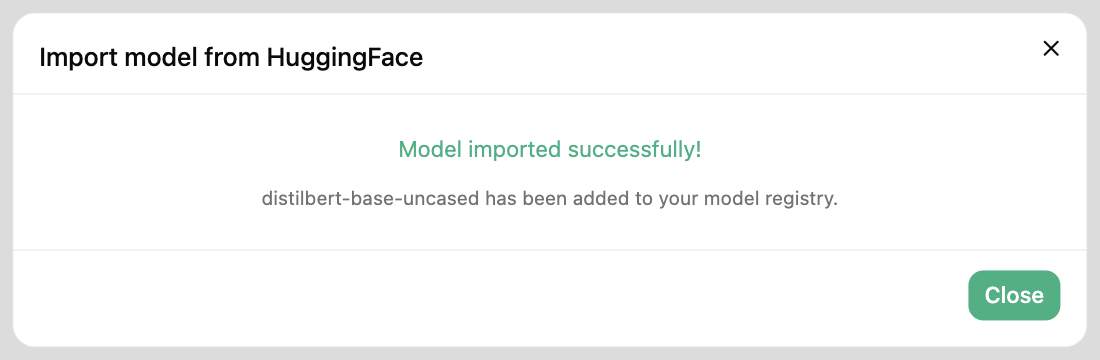
Step 7: Success#
When all files have been downloaded, the model version is automatically registered in the Model Registry with an auto-detected framework. The modal shows a success screen and the new version appears in the Model Registry list.
Framework auto-detection#
Hopsworks picks the framework in this order:
- HuggingFace
pipeline_tagfrom the repo metadata. Generative tags such astext-generation,text2text-generation,conversational,image-text-to-text,visual-question-answering, anddocument-question-answeringmap toLLM. - HuggingFace
tagsarray. If it containsllmorlarge-language-model, the framework is set toLLM. - README / model card. Phrases such as "large language model", standalone "LLM", or a front-matter
pipeline_tag: text-generationalso map toLLM. - File extensions in the downloaded repo:
saved_model.pb→TENSORFLOW.pklor.joblib→SKLEARNpytorch_model.bin,.safetensors,.pt,.pth→TORCH
- Fallback →
PYTHON.
If the detected framework isn't right, you can change it later from the model's detail page. See Editing the framework below.
vLLM config for LLMs
When the framework is detected as LLM, Hopsworks writes a default vllmconfig.yaml alongside the model files (dtype: "half", gpu_memory_utilization: 0.96). max_model_len is intentionally left out so vLLM uses the context window declared in the model's own config.json. Edit this file if you need a smaller context to fit your GPU.
Editing the framework#
The framework is shown as a dropdown on the Summary panel of the model version page. Select a different value (TENSORFLOW, TORCH, SKLEARN, LLM, PYTHON, or No framework) and the change is persisted immediately. The dropdown is read-only for users with the Observer role.
The framework is more than a label: the Deploy this version button on the same page uses it to pre-fill the deployment form:
| Framework | Model server | Config file | Environment match |
|---|---|---|---|
LLM | vLLM | vllmconfig.yaml | vllm |
TENSORFLOW | TensorFlow Serving | predictor.py | tensorflow |
SKLEARN | Python | predictor.py | sklearn |
| Other | Python | predictor.py | python |
If the corresponding config file (vllmconfig.yaml or predictor.py) already exists under the model's Files/ directory, it is auto-selected in the deployment form.
Managing vLLM configs#
For models with the LLM framework, the model version page shows a VLLM Configs button that opens a dialog listing every *-vllmconfig.yaml file under the model's Files/ directory, one per GPU type. A file named plain vllmconfig.yaml (no prefix) is labelled Default; others are keyed by the GPU they target, for example NVIDIA-RTX-6000-vllmconfig.yaml.
Each entry can be inspected in-place and switched to edit mode. Saving an edit replaces the file in HopsFS and invalidates the cached content.
Generate a vLLM config with Platform Intelligence#
If the Platform Intelligence feature is enabled on the cluster, the model version page also shows a Generate VLLM Config button. Pick a GPU type from the dropdown (populated from the cluster's available GPUs) and Platform Intelligence returns a minimal YAML (dtype, max_model_len, gpu_memory_utilization) tuned for that GPU. The result is saved as <gpu-type>-vllmconfig.yaml next to the model files, and any legacy variants of the same name (with spaces or underscores) are cleaned up.
The generator chat session is deleted as soon as the YAML has been uploaded, even if the generation fails.
Model naming#
The imported model is registered under the repo portion of the HuggingFace ID, with any non-alphanumeric characters replaced by _. For example:
| HuggingFace ID | Hopsworks model name |
|---|---|
Qwen/Qwen2.5-0.5B | Qwen2_5_0_5B |
meta-llama/Llama-3.2-1B | Llama_3_2_1B |
prajjwal1/bert-tiny | bert_tiny |
If the model name already exists in the project, the import creates the next integer version; otherwise it creates version 1.
Errors#
If the import fails, the modal shows one of these reasons:
| Error | Meaning |
|---|---|
auth_required | A token was supplied but rejected by HuggingFace (invalid, expired, or no grant for this repo). |
not_found_or_auth_required | No token supplied and HuggingFace returned 401 (ID is wrong, or the repo is gated/private). |
model_not_found | HuggingFace returned 404: the repo does not exist. |
no_disk_space | The project ran out of HopsFS storage quota while downloading. |
download_failed: <file> | A specific file failed to download (e.g. transient network issue). |
invalid_filename: <name> | The repo contained a filename with disallowed characters (e.g. ..). |
registration_failed: ... | The files downloaded but the final registration step failed. |
For all terminal failures Hopsworks removes the partial model directory from HopsFS on a best-effort basis.
Going Further#
- Attach an Input Example and Model Schema to your imported model.
- Serve the imported model with Model Serving: LLMs auto-pick up the generated
vllmconfig.yaml.