How To Manage Deployment Versions#
Introduction#
In this guide, you will learn how a deployment keeps a numbered history of its configuration, and how to save, inspect and roll back versions.
Every deployment has one or more versions. A new deployment starts at version 1, and exactly one version is active at a time, the one the deployment runs. This applies to model deployments and to Python deployments, which run a script without a model.
When you save changes to a deployment, you choose how they are stored:
- Save edits the active version in place, and it keeps its number.
- Save as new version stores the configuration as a new version, numbered one above the highest the deployment ever had, and makes it active.
The previous versions are kept with their files, so a rollback reactivates an earlier version without copying anything. Running instances restart only when the active configuration changes, so a save without changes neither restarts the deployment nor creates a version. Two cases count as a change even when the form is unchanged: a script read from outside the version, from a HopsFS path or a git repository, and a Python environment whose libraries changed since the deployment started.
Restarting a deployment
To restart a deployment without saving, you can stop and start it.
Saving in place keeps the version number, so the DEPLOYMENT_VERSION environment variable and the deployment_version column of logged features stay the same across the change. Use Save as new version when you need to tell the predictions of the old and new configuration apart.
What a version holds#
A version holds the configuration of the predictor and the transformer:
| Configuration | Details |
|---|---|
| Model | The model and model version, for model deployments. |
| Artifact files | The predictor and transformer scripts, and the server configuration file, as described in Artifact files of a version. |
| vLLM | The vLLM settings for LLM deployments. |
| Python environments | The environments the predictor and the transformer run in. |
| Resources and scaling | Resources, scaling configuration and environment variables. |
| Source and observability | The git source, tracing and feature logging configuration. |
The API protocol, request batching, inference logging, scheduling configuration and Knative mode belong to the deployment rather than to a version. They are edited in place whichever way you save, and a rollback does not restore them, because they apply to the endpoint and the infrastructure it runs on rather than to what it serves.
Versions edited in place
A version that was edited in place with Save after it was created comes back as edited, when you roll back to it. Use Save as new version when you want to be able to return to the current configuration.
Web UI#
Step 1: Save a new version#
Open the deployment and go to its edit page. After making your changes, open the menu next to the Save button at the bottom of the form and click on Save as new version. Clicking on Save instead edits the active version in place.

Step 2: Inspect the versions#
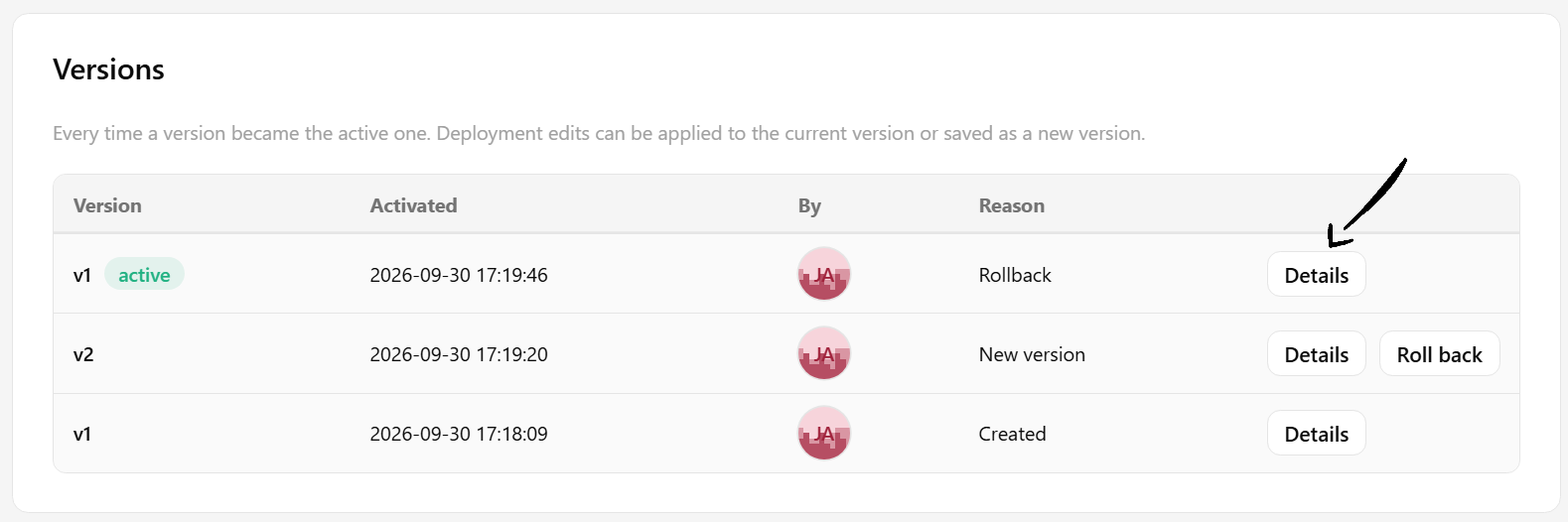
The Versions card on the deployment overview page lists every time a version became the active one, with when, by whom and why: creation, new version or rollback. The version the deployment runs is marked as active.
Click on Details next to a version to see its configuration, including its model, scripts, Python environments, scaling and resources. The scripts can be downloaded from there, and the model and the Python environments link to their pages.
Step 3: Roll back#
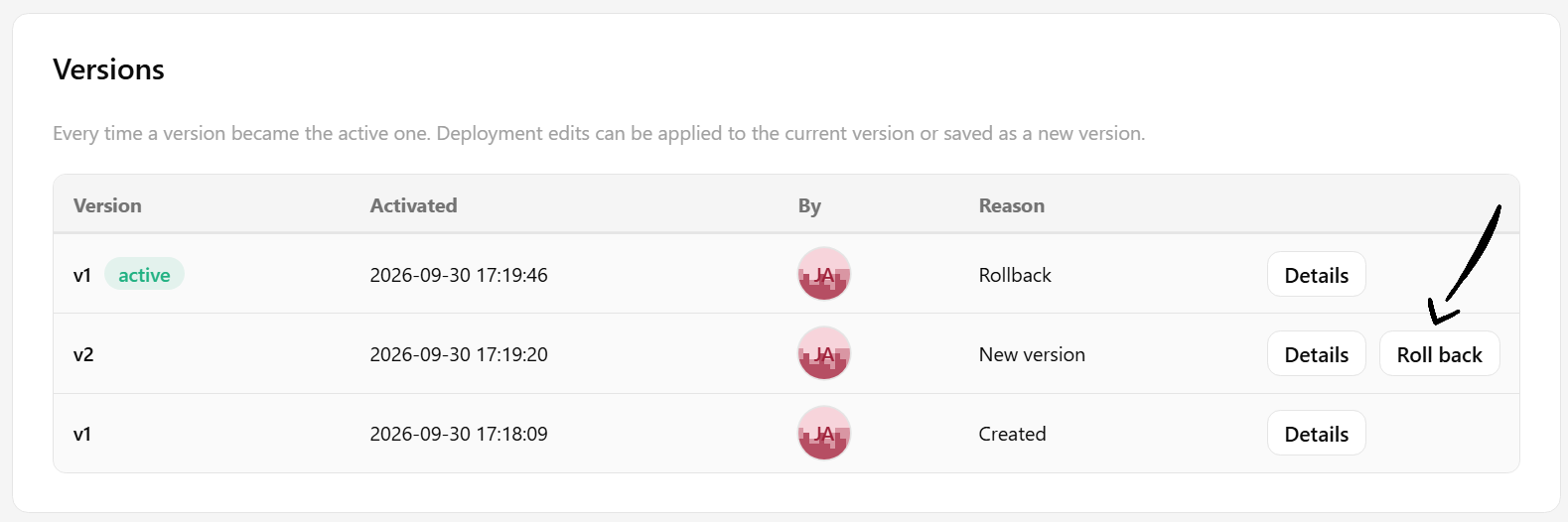
Click on Roll back next to an earlier version and confirm. A running deployment restarts with the configuration of that version. Rolling back requires the Data owner role in the project, and is disabled while the deployment is starting or stopping. It stays available while a new version is updating, so a version that fails to come up can be rolled back right away. The rollback then starts a new rollout with the configuration of the earlier version, and the instances that were serving keep serving until it is ready. An edit saved in place cannot be undone with a rollback, because it changed the active version itself: stop the deployment or wait for it to fail, then save the previous configuration again.
Code#
Step 1: Connect to Hopsworks#
Step 2: Save a new version#
Change the configuration and call .save() with new_version=True. Without it, the active version is edited in place.
Step 3: List the versions#
Step 4: Roll back#
API reference
Artifact files of a version#
The artifact files of each version, such as the predictor and transformer scripts and the server configuration file, are stored under /Deployments/<deployment-name>/<version>/. A script read from a HopsFS path or a git repository is stored in the version as that path or repository, not copied, so a rollback restores the configuration but not the code.
Inside a deployment, the active version number is available in the DEPLOYMENT_VERSION environment variable, and the local path to its artifact files in ARTIFACT_FILES_PATH.
Warning
All files under /Models and /Deployments are managed by Hopsworks. Manual changes to these files cannot be reverted and can have an impact on existing model deployments.