How To Configure External Access To A Model Deployment#
Introduction#
Hopsworks supports role-based access control (RBAC) for project members within a project, where a project ML assets can only be accessed by Hopsworks users that are members of that project (See governance).
However, there are cases where you might want to grant external users with access to specific model deployments without them having to register into Hopsworks or to join the project which will give them access to all project ML assets. For these cases, Hopsworks supports fine-grained access control to model deployments based on user groups managed by an external Identity Provider.
Authentication methods
Hopsworks can be configured to use different types of authentication methods including OAuth2, LDAP and Kerberos. See the Authentication Methods Guide for more information.
Web UI (for Hopsworks users)#
Step 1: Navigate to a model deployment#
If you have at least one model deployment already created, navigate to the model deployments page by clicking on the Deployments tab on the navigation menu on the left.
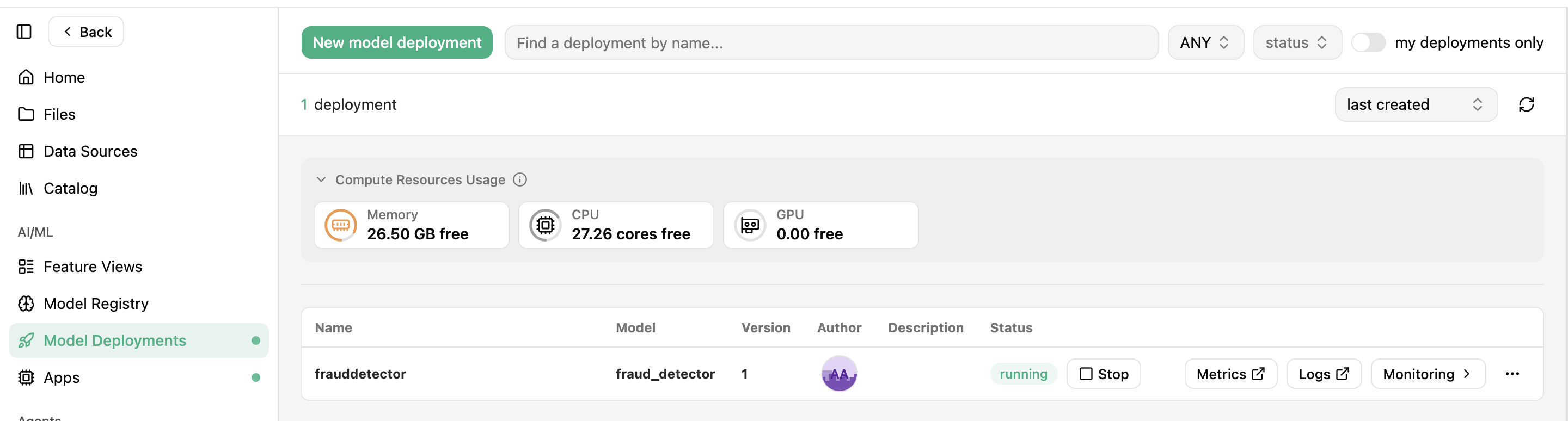
Once in the model deployments page, find the model deployment you want to configure external access and click on the name of the deployment to open the model deployment overview page.

Step 2: Go to External Access#
You can find the external access configuration by clicking on External access on the navigation menu on the left or scrolling down to the external access section.

Step 3: Add or remove user groups#
In this section, you can add and remove user groups by clicking on edit external user groups and typing the group name in the text-free input field or selecting one of the existing ones in the dropdown list. After that, click on the save button to persist the changes.
Case sensitivity
Inference requests are authorized using a case-sensitive exact match between the group names of the user making the request and the group names granted access to the model deployment. Therefore, a user assigned to the group lab1 won't have access to a model deployment accessible by group LAB1.

Web UI (for external users)#
Step 1: Login with the external identity provider#
Navigate to Hopsworks, and click on the Login with button to sign in using the configured external identity provider (e.g., Keycloak in this example).

Step 2: Explore the model deployments you are granted access to#
Once you sign in to Hopsworks, you can see the list of model deployments you are granted access to based on your assigned groups.

Step 2: Inspect your current groups#
You can find the current groups you are assigned to at the top of the page.

Step 3: Get an API key#
Inference requests to model deployments are authenticated and authorized based on your external user and user groups. You can create API keys to authenticate your inference requests by clicking on the Create API Key button.
Authorization header
API keys are set in the authorization header following the format ApiKey <api-key-value>

Step 4: Send inference requests#
The URI path for sending inference requests depends on the type of model deployment. For example, LLM deployments typically use /chat/completions, while traditional model deployments use /predict. You can find the exact URI path for each deployment on its model deployment card.
For detailed instructions on constructing requests and handling authentication, refer to the REST API Guide.
Code snippets
For clients sending inference requests using libraries similar to curl or OpenAI API-compatible libraries (e.g., LangChain), you can find code snippet examples by clicking on the Curl >_ and LangChain >_ buttons.

LLM deployments and the LLM Gateway#
On a cluster where the LLM Gateway is enabled, the groups granted on an LLM deployment also let external users call it through the project's LLM Gateway, <inference endpoint>/v1/<project>/v1/, with the deployment name as the request's model. An external user can use only the deployments granted to them there, with these operations only:
- Chat completions,
/v1/chat/completions - Completions,
/v1/completions - Embeddings,
/v1/embeddings - Responses,
/v1/responses - Anthropic messages,
/anthropic/v1/messages
Listing the project's models, and every other path, is refused with 403. The LLM Gateway serves only the deployments described under LLM Gateway; the others stay on their own path. A Data Owner can turn the LLM Gateway off for the project or for one deployment, which leaves the deployment's own path as it is.
Sharing with projects#
A vLLM deployment that the LLM Gateway serves can also be shared with other projects of the cluster. Its users call it through the owning project's LLM Gateway with their own API keys, as described under Coding agents. A deployment shared with selected projects admits their members with the role Data Owner or Data Scientist, and refuses members with another role, such as Feature store restricted. A deployment shared with all projects admits every user with an allowed platform role, whatever their projects. Sharing never widens the access of the owning project's own members: a member keeps the access of their role there, so a Feature store restricted member of the owning project is refused either way. The Terminal lists a shared deployment only to the users it admits. Unlike access through external access groups, sharing does not require external users to sign in periodically: as for the owning project's members, their roles in Hopsworks decide. They run inference with the five operations listed above, for the deployment's own model only. They cannot list models, see or manage the deployment, or call its direct route, and each request is attributed to them in the owning project's usage.
Three mechanisms grant access to a deployment, each to a different kind of caller:
| Mechanism | Who it grants | Routes |
|---|---|---|
| Project membership | Members of the owning project | LLM Gateway and direct |
| External access groups | External users in the listed groups | LLM Gateway and direct |
| Sharing with projects | Data Owners and Data Scientists of the selected projects, or every user with an allowed platform role when shared with all projects; never a member of the owning project | LLM Gateway only |
Data Owners of the owning project decide, per deployment. The deployment's create and edit forms have a Share with other projects setting with two options:
- All projects, which shares the deployment with every project of the cluster;
- Selected projects, with a list of project names, which shares it with the members of those projects only.
The deployment's Overview shows the state on its LLM Gateway card with read-only badges:
- Enabled or Disabled, whether the LLM Gateway serves the deployment;
- the sharing state: Shared with all projects, Shared with N projects followed by one badge per project name, or Not shared with any project.
Project members see the badges, and only Data Owners change the setting. The setting is disabled, with the reason shown under it, when the deployment is not served by the LLM Gateway or when an administrator turned sharing off for the cluster, see Access to the LLM Gateway. The Overview then shows no sharing badge.
With the Python client, Deployment reads and changes the same state:
import hopsworks


project = hopsworks.login()
ms = project.get_model_serving()

deployment = ms.get_deployment("my_llm_deployment")

print(deployment.shared_with)  # {'all_projects': True, 'projects': []}

# Restrict it to two projects
deployment.unshare(all_projects=True)
deployment.share_with(projects=["analytics", "research"])
print(deployment.shared_with)  # {'all_projects': False, 'projects': [...]}
share_with adds the named projects and unshare removes them from what is stored when the call reaches the backend, so two Data Owners changing the sharing at the same time do not undo each other's change.
A new LLM deployment that the LLM Gateway serves is shared with all projects by default. A deployment created before the upgrade that introduced sharing stays project-only until a Data Owner shares it. If the LLM Gateway did not serve it, turning the LLM Gateway on for it with the REST API or set_llm_gateway(True) shares it with all projects, as for a new deployment. Turning the LLM Gateway on for the project does not share anything: a deployment created while the project's LLM Gateway was off stays project-only until a Data Owner shares it. The create and edit forms send the sharing they show with the deployment, so it is stored before the deployment is exposed and the all-projects default does not apply. A choice a Data Owner made, including switching All projects off, is kept when the deployment leaves and joins the LLM Gateway again.
Limits and traces of the LLM Gateway#
An administrator can set token and request limits on the LLM Gateway, per project, per user and per deployment, as described under Rate limits and token quotas. The limits that apply to a project are shown, read-only, in the project settings, and a request over a limit gets 429.
When an administrator has turned tracing on, members with the role Data Owner or Data Scientist see the project's request traces under LLM Gateway in the project settings, with a filter on the deployment, and one deployment's traces in its Overview. Prompts and responses are not stored in them unless an administrator turned that on too.
Refreshing External User Groups#
Every time an external user signs in to Hopsworks using a pre-configured authentication method, Hopsworks fetches the external user groups and updates the internal state accordingly. Given that groups can be added/removed from users at any time by the Identity Provider, Hopsworks needs to periodically fetch the external user groups to keep the state updated.
Therefore, external users that want to access model deployments are required to login periodically to ensure they are still part of the allowed groups. The timespan between logins is controlled by the configuration parameter requireExternalUserLoginAfterHours available during the Hopsworks installation and upgrade.
The requireExternalUserLoginAfterHours configuration parameter controls the number of hours after which external users are required to sign in to Hopsworks to refresh their external user groups.
Configuring requireExternalUserLoginAfterHours
Allowed values are -1, 0 and greater than 0, where -1 disables the periodic login requirement and 0 disables external access completely for every model deployment.