Alerts#
Introduction#
Hopsworks can notify you when something happens in your project, such as a job failing or a feature ingestion succeeding. Alerts are delivered through Prometheus' Alert manager to receivers that you define per project. Email, Slack and PagerDuty alerts require an administrator to first configure the corresponding channel for the cluster, so that Hopsworks knows how to reach the provider. Webhook receivers can be created directly in a project without any cluster-level channel configuration. See Configure Alerts for the administrator setup.
You manage a project's alerts under Project Settings → Alerts.
Alert receivers#
A receiver is a destination that an alert is sent to, for example a Slack channel or a webhook URL. The Alert receivers table lists the receivers available to the project, both the receivers you created in this project and the global receivers shared across the cluster.
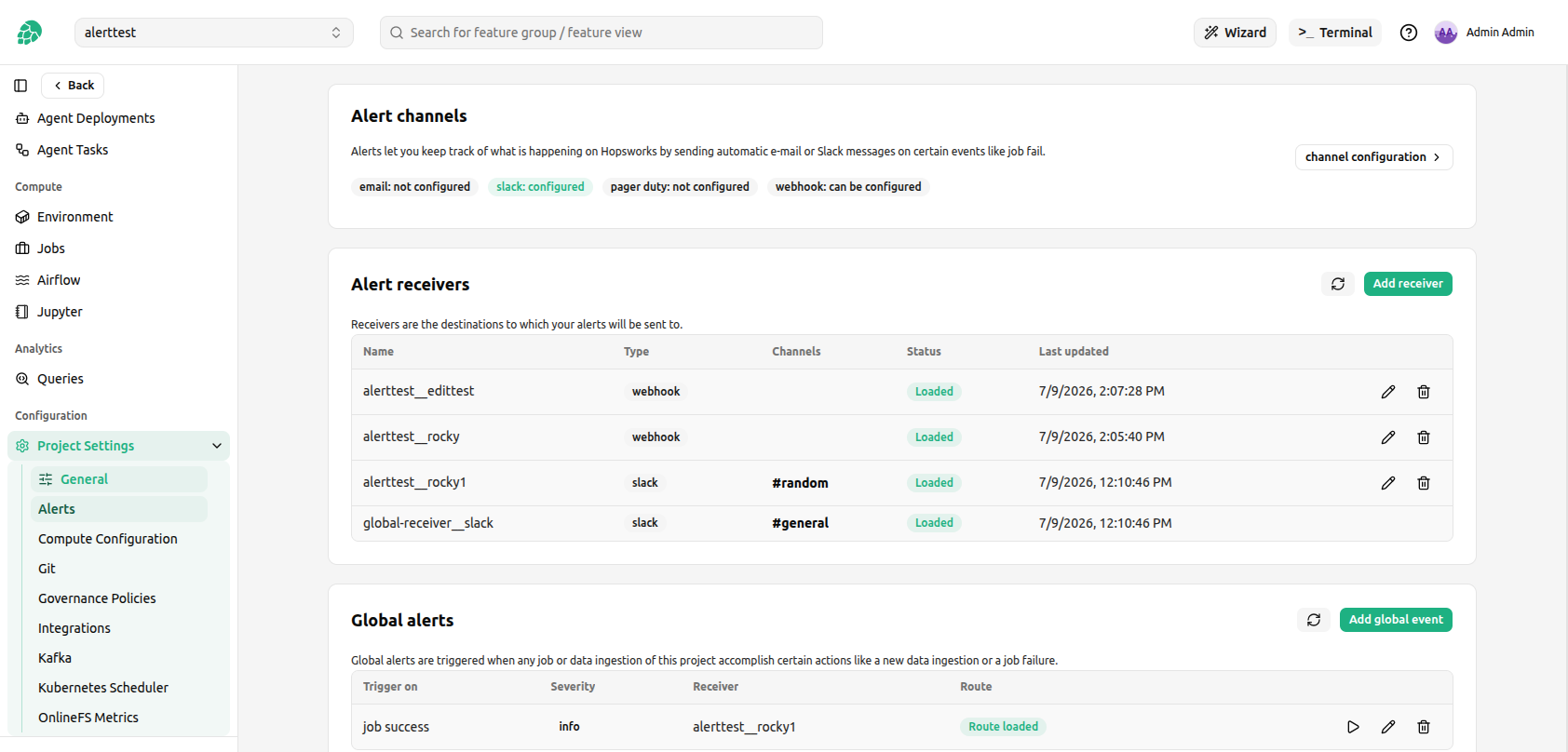
To add a receiver click Add receiver, choose a channel, give it a name and fill in the channel details.
Receiver load status#
When you create or edit a receiver, Hopsworks writes the change to the Alert manager configuration and then the Alert manager loads it asynchronously. The receiver is not usable until it has been loaded, so each receiver shows a Status that tells you whether it is ready.
| Status | Meaning |
|---|---|
| Loaded | The receiver is active in the Alert manager and can be used in an alert. |
| Pending | The receiver has been saved but the Alert manager has not loaded it yet. It usually becomes Loaded within a minute. |
| Warning | The receiver has stayed unloaded past the timeout. The Alert manager most likely rejected the configuration, for example because it is malformed. |
A newly created receiver appears immediately in the list as Pending and switches to Loaded once the Alert manager has picked it up.
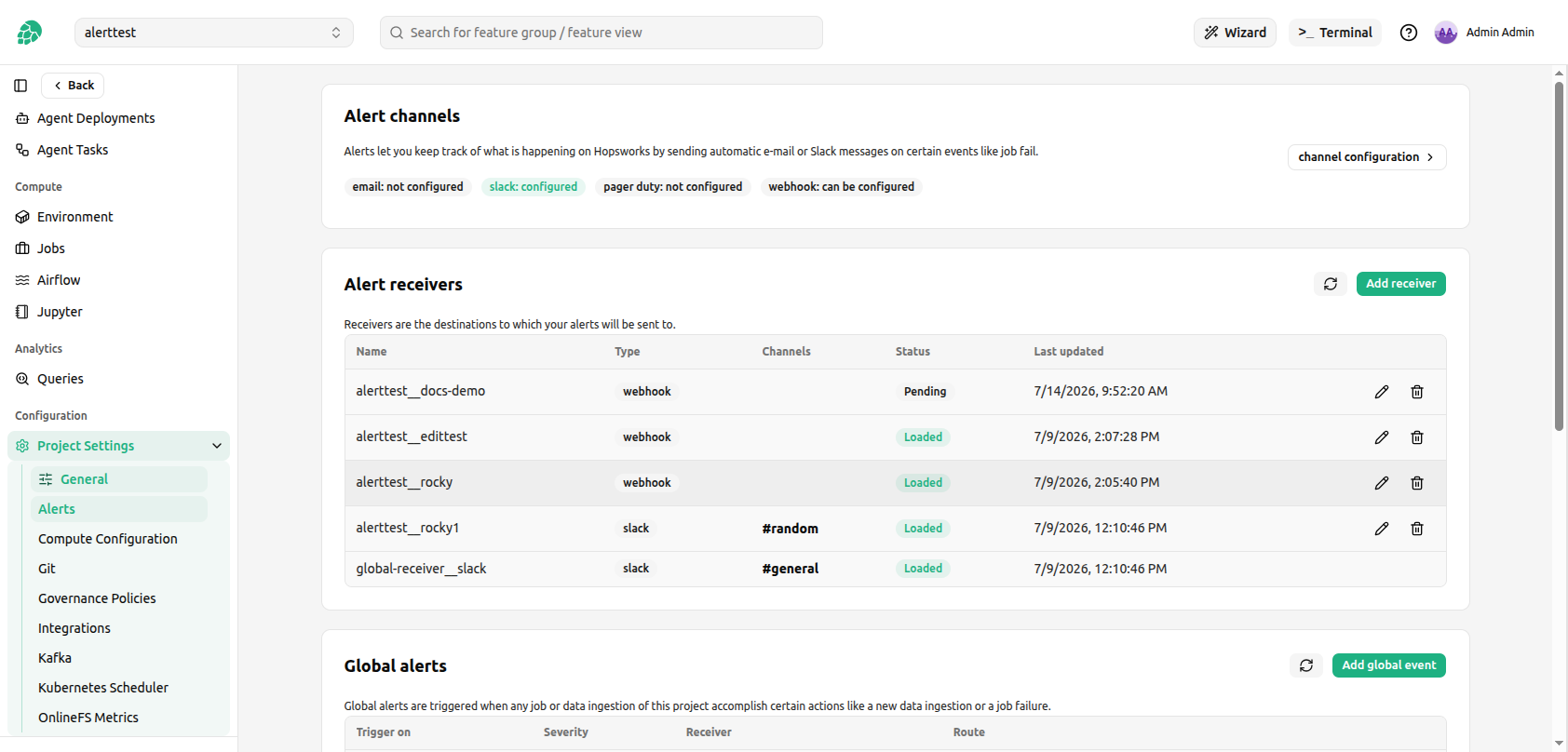
If a receiver stays in Warning, edit it to correct the configuration or delete it. The status refreshes on its own after a create or edit, and you can trigger a refresh manually with the Refresh button.
Creating alerts#
Alerts are triggered by events such as a job succeeding or failing, a feature ingestion completing, or feature monitoring detecting a shift. You create project-wide alerts under Global alerts, and you can also attach alerts to an individual job or feature group from its own page. For each alert you choose a trigger, a severity and the receiver that the notification is sent to.
Only receivers that are Loaded can be selected. A receiver that is not yet loaded is shown as disabled in the receiver dropdown, because routing an alert to a receiver the Alert manager has not loaded would silently drop the notification.
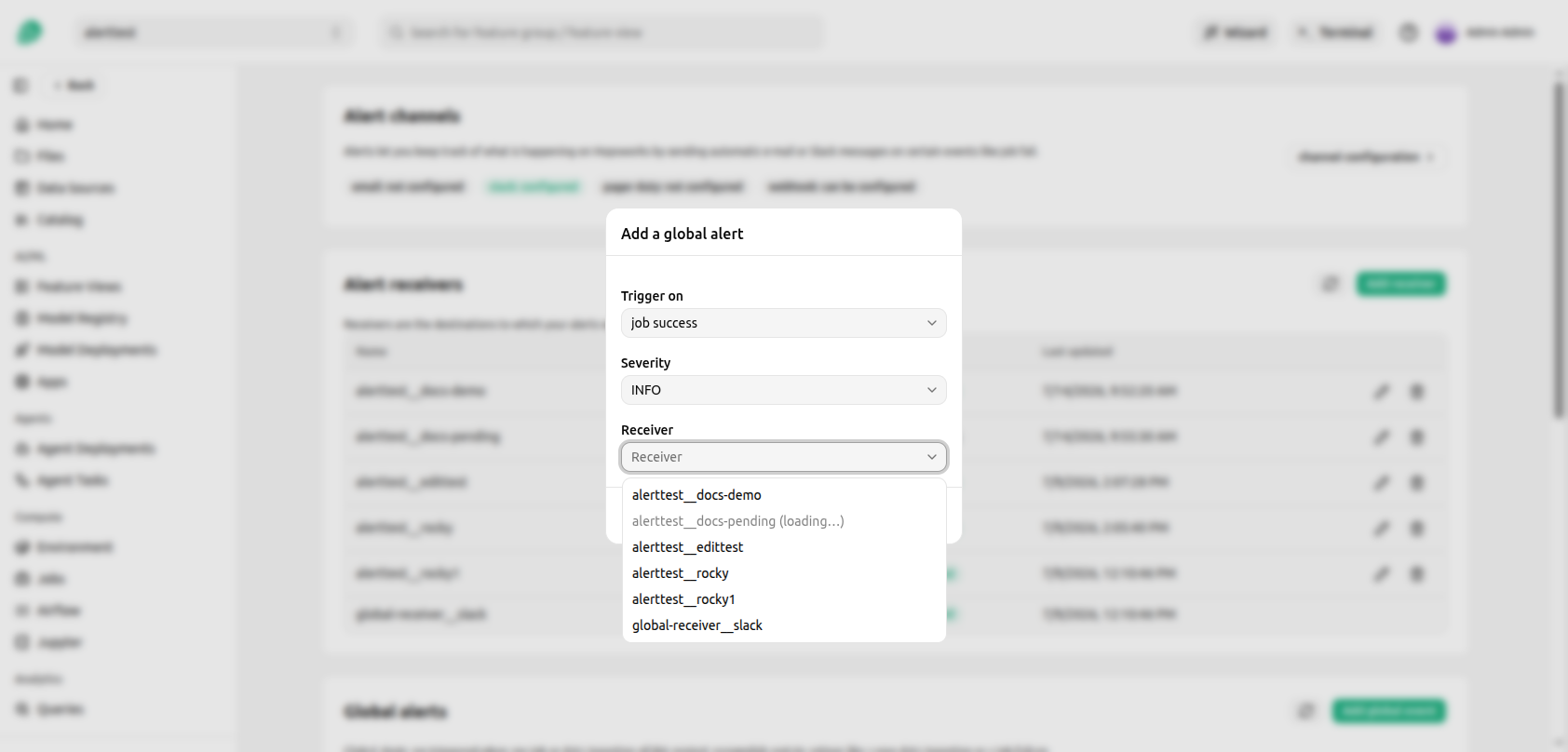
Each configured global alert shows a Route status that mirrors the receiver status, so you can confirm that the route is loaded in the Alert manager.
Triggered alerts (debugging)#
The Triggered alerts (debugging) panel shows the Alert manager's live view of the alerts currently firing for the project. Use it to understand why a triggered alert may not have been delivered.
The panel shows the routing timing in effect (group_wait, group_interval, repeat_interval and group_by) and a table of the alerts the Alert manager currently holds.
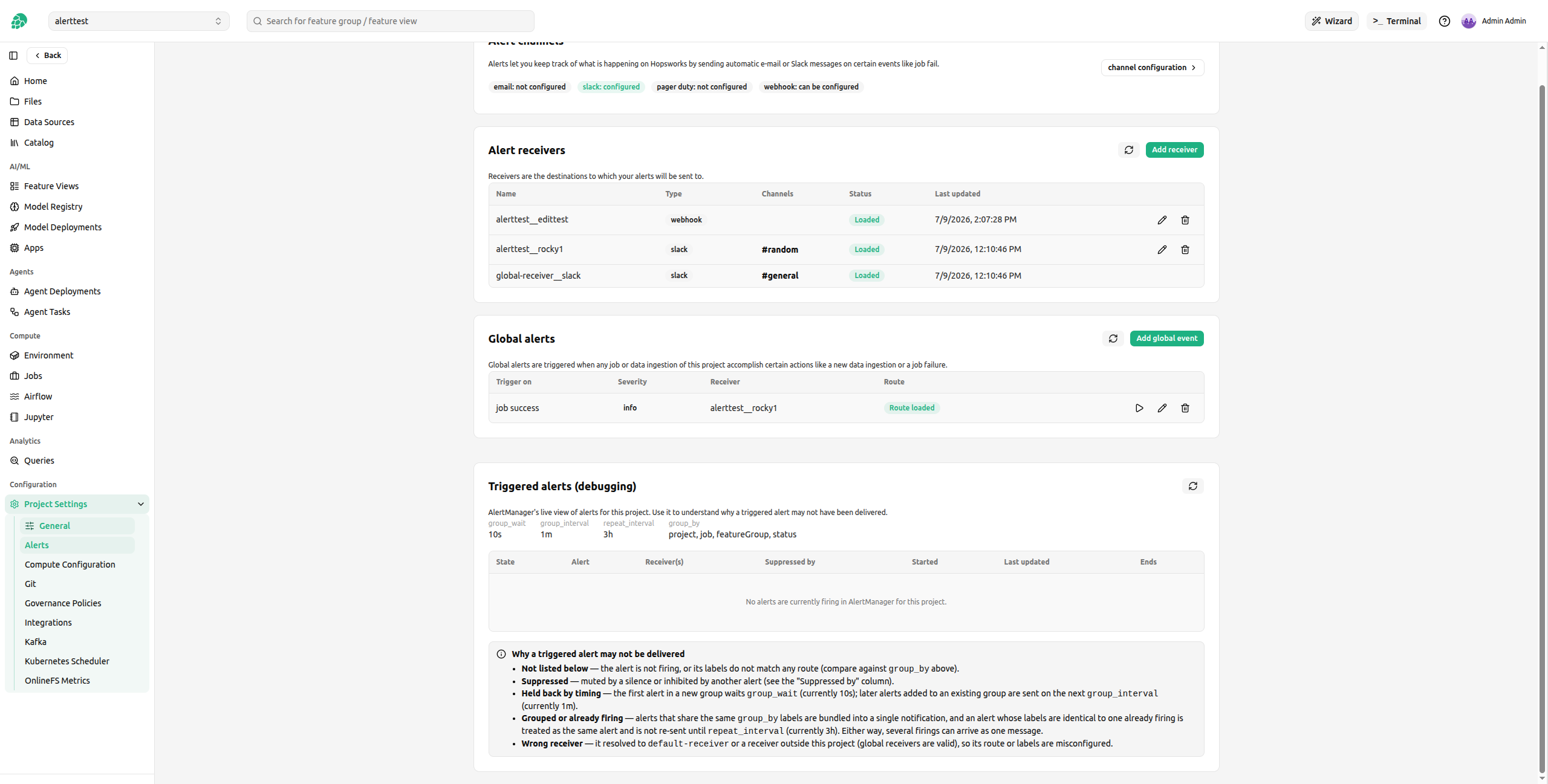
If an alert you expected is missing or was not delivered, the panel explains the common reasons:
- Not listed below: the alert is not firing, or its labels do not match any route. Compare against the
group_byshown above. - Suppressed: the alert is muted by a silence or inhibited by another alert. See the Suppressed by column.
- Held back by timing: the first alert in a new group waits
group_wait, and later alerts added to an existing group are sent on the nextgroup_interval. - Grouped or already firing: alerts that share the same
group_bylabels are bundled into a single notification, and an alert whose labels match one already firing is not re-sent untilrepeat_interval. Either way several firings can arrive as one message. - Wrong receiver: the alert resolved to
default-receiveror to a receiver outside this project, so its route or labels are misconfigured. Global receivers are valid for every project.