How To Manage Members To A Project#
Introduction#
In this guide, you will learn how to add new members to your project and understand the different roles available within a project.
Step 1: View the members list#
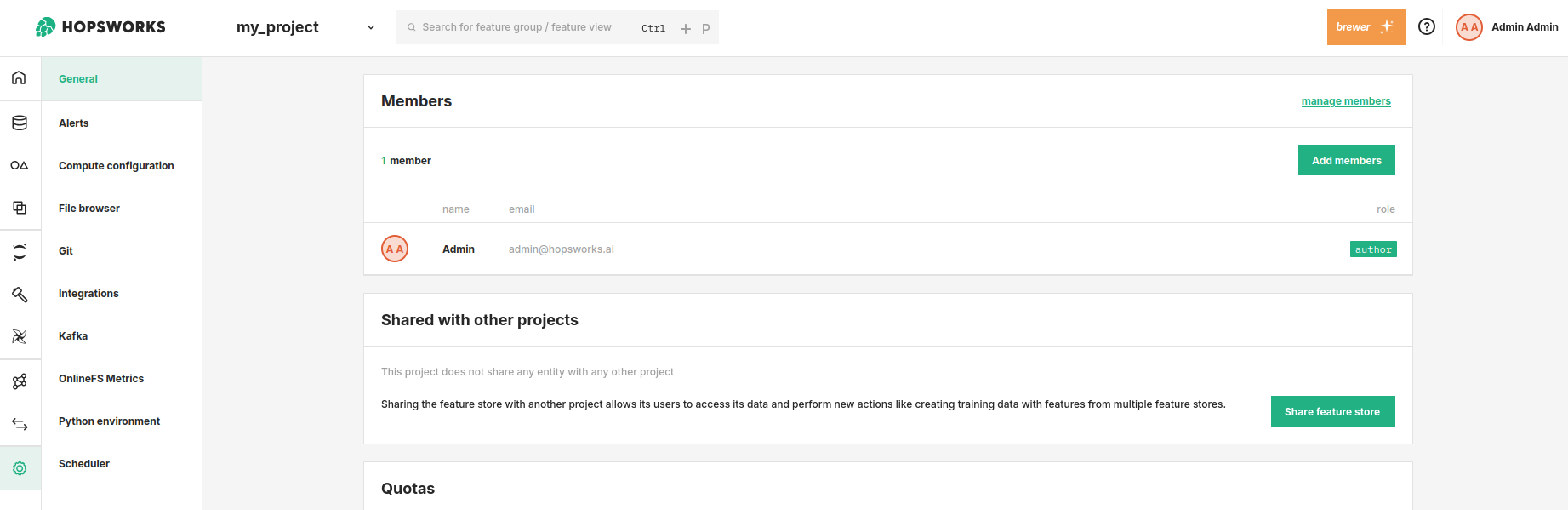
Navigate to the Project settings page and locate the General section, which displays the current members of the project.
Step 2: Add a new member#
Click Add members to open a dialog where you can invite users. Select one or more users to invite.
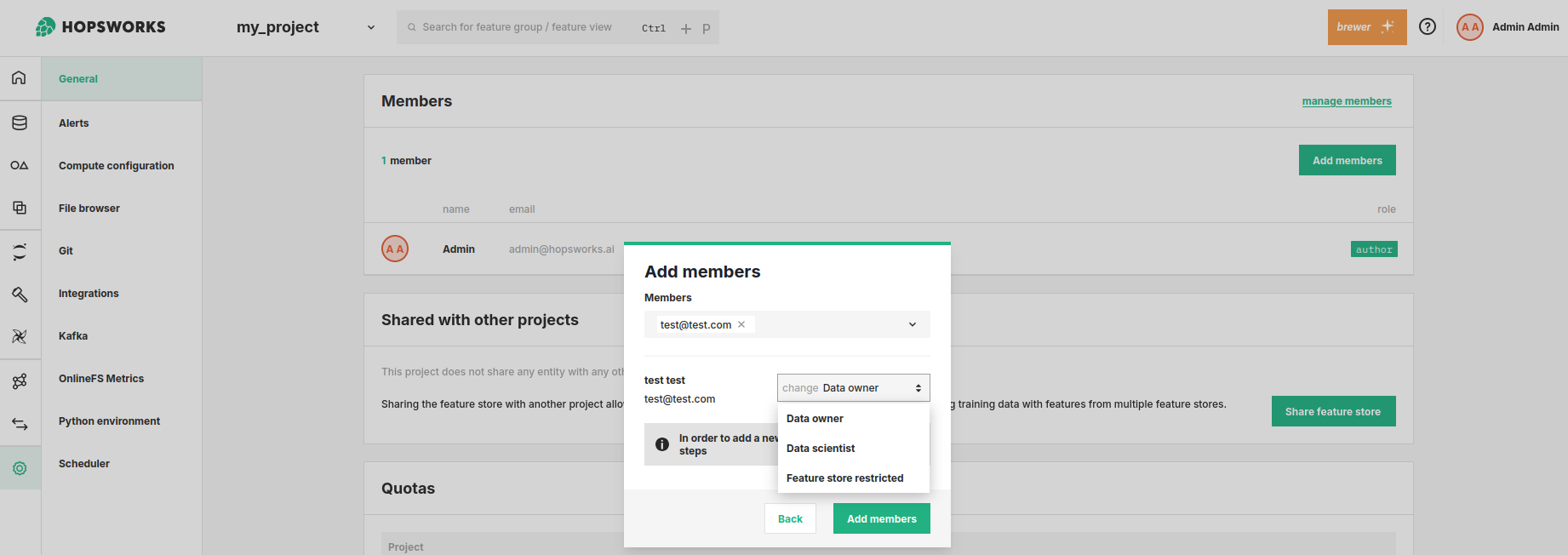
Each member can be assigned one of three roles, depending on the level of access they need.
Data owner#
Data owners hold the highest authority in the project, with full control over its contents.
They can:
- Share the project with other projects
- Manage project settings and members
- Create, read, update, and delete all feature store resources (feature groups, feature views, training datasets, etc.)
Project author
The project creator is a special type of Data owner. Only the creator can delete the project, and their role cannot be changed.
Data scientist#
Data scientists are consumers and creators of feature views and training datasets.
They can:
- Create feature views and training datasets using existing feature groups
- Manage the feature views and training datasets they have created
- Read feature groups created by Data owners
Feature store restricted#
Feature store restricted users function similarly to Data scientists but with tighter restrictions on what data they can access. They are designed for users who should only work with features that have been explicitly shared with them.
Key differences from Data scientist:
- No cross-project feature store access: A Feature store restricted user cannot use feature groups from a shared project. They can only work within the feature groups of their own project.
- Explicit sharing required: A Feature store restricted user can only see and use feature groups that have been explicitly shared with them individually, not all feature groups in their project.
- Feature view access is gated by feature access: A Feature store restricted user can only interact with a feature view if they have access to every feature group the feature view depends on. If even one underlying feature group has not been shared with them, they cannot use that feature view.
They can:
- Access and use feature groups that have been explicitly shared with them
- Create feature views and training datasets using only the features they have been granted access to
Step 3: Confirm member invitation#
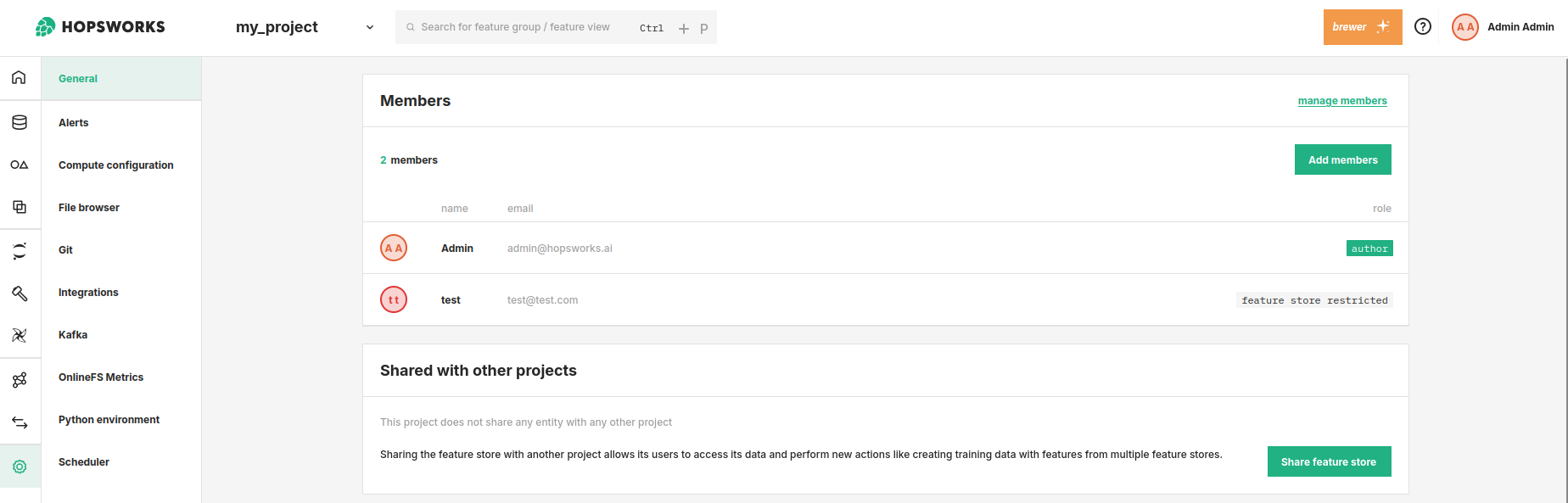
The invited user will now appear in the members list and will have immediate access to the project based on their assigned role.
Step 4: Manage members#
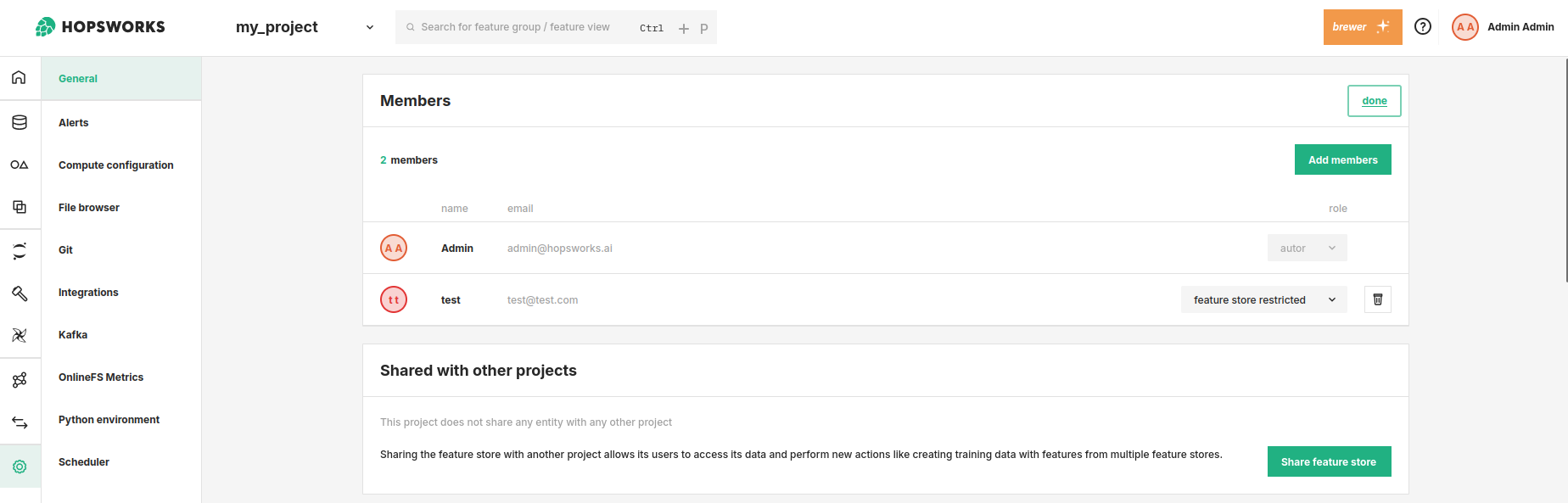
To change a member's role or remove them from the project, click the Manage members button. From there, you can modify roles or delete members as needed.
What happens to a removed member's files#
Each member has a private home directory in the project, /Projects/<project>/Users/<username>, holding their notebooks, their SSH key and their agent configuration.
When a member is removed, that directory and everything under it is transferred to another data owner. The files keep their contents and their paths; only the owner changes. The removed member loses access, as they do to the rest of the project.
The directory keeps the name of the member who had it, since the paths do not change. The new owner finds it in the project's Users dataset under that name, next to their own home directory. Nobody else sees it: home directories stay private to whoever owns them.
Adding that member back to the project gives them a new, empty home directory. The files they left keep the data owner who took them over, and move to Users/<data owner>/former-members/<member> to free the path.
A hand-over runs in the background and is retried until it completes. If it is lost, which deleting the removed member's account before it runs does, the platform's periodic permissions check finds the directory and hands it to the longest-serving data owner instead of the one the removal chose.
The remove dialog asks which data owner takes them, and starts on the data owner who has been in the project the longest. Only data owners are offered: a data scientist cannot manage members, so files handed to one would be out of reach of the people who can. Service accounts are never chosen.
The transfer runs in the background. A member with a large home directory takes a moment to hand over, because every file and directory under it changes owner one at a time, and the removal does not wait for that to finish.
Two cases where nothing is transferred, and one where the removal is refused:
| Case | Result |
|---|---|
| The removal asks for the home directory to be deleted | The directory is deleted, so there is nothing to transfer |
| The member being removed has no home directory | Nothing to transfer |
| Removing the member would leave the project with no data owner | The removal is refused. Give another member the data owner role first |
Python SDK#
import hopsworks


project = hopsworks.login()

# Add a member
project.add_member("alice@example.com", "Data scientist")

# List members
for member in project.get_members():
    print(member.email, member.role)

# Change a member's role
project.get_members_api().update_role("alice@example.com", "Observer")

# Remove a member. Their files go to the longest-serving data owner
project.remove_member("alice@example.com")

# Name the data owner that takes over their files
project.remove_member("alice@example.com", new_file_owner="carol@example.com")

# Delete their files instead of handing them over
project.remove_member("alice@example.com", delete_home_dir=True)
Roles are the same as in the UI: Data owner, Data scientist, Observer, and Feature store restricted. A data scientist removing a member can only remove themselves; the project owner's role cannot be changed or removed.