Terminal#
Introduction#
Hopsworks provides a browser terminal that runs inside your project. The terminal is a dedicated pod running under your project user, with your HopsFS home directory mounted at /hopsfs/Users/<username>. Files you create there are stored in the project file system and survive the terminal session.
Prerequisites#
The terminal is disabled by default. An administrator must set the enable_terminal configuration variable to true. The related terminal_* variables (image, session length, shared memory size) are listed in the configuration reference.
Start a terminal#
Click on >_ Terminal in the top navigation bar of your project. A panel opens on the right side of the page.
Select the environment for the session, Python or Spark, and set the CPU cores and memory for the terminal pod. Then click Start Terminal.
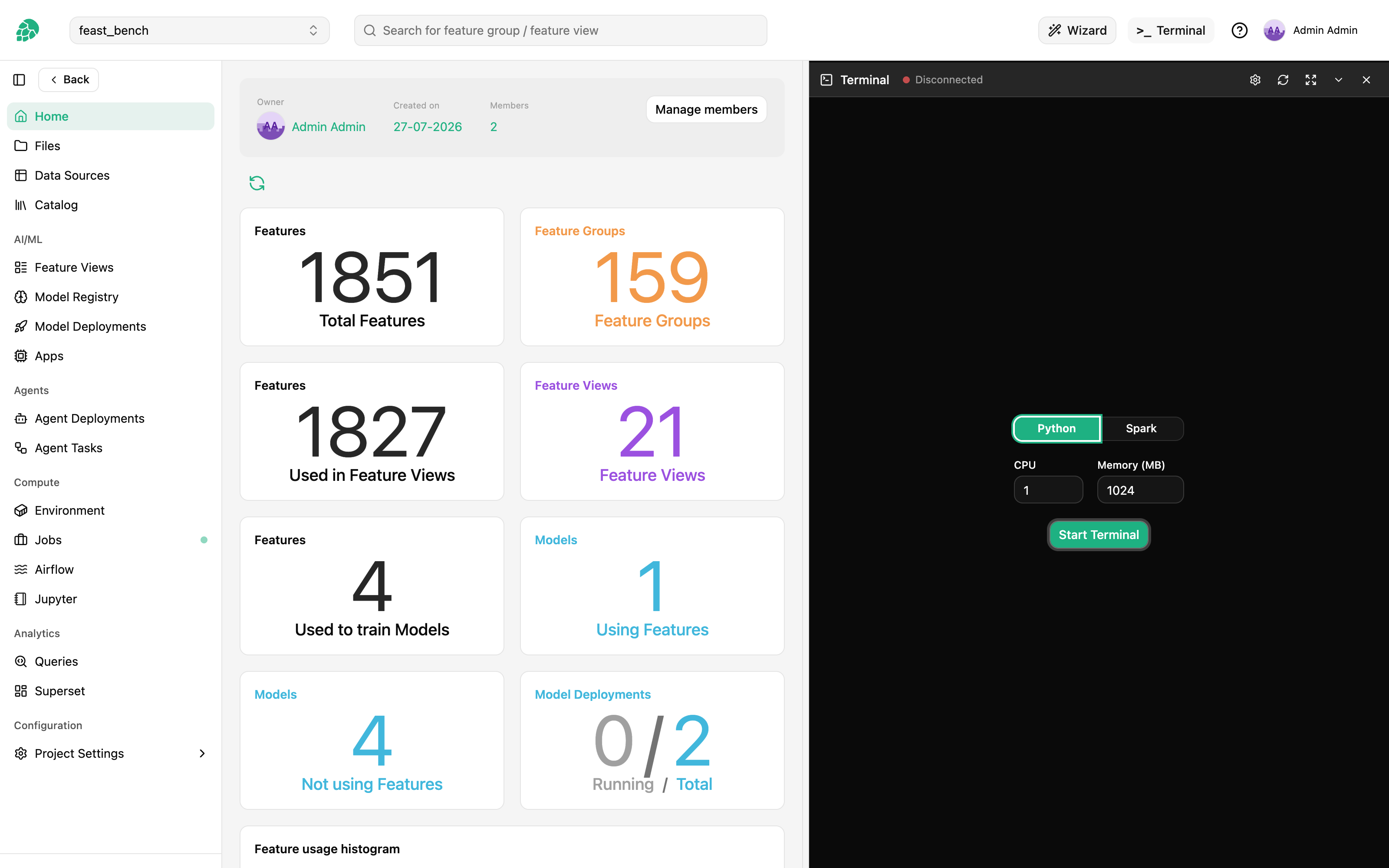
The session starts a pod in your project namespace, so it is subject to the same resource quotas and scheduling as jobs and notebooks. A session expires after a fixed lifetime, four hours by default (terminal_session_hours).
Use the terminal#
Once connected, the panel shows a shell in your HopsFS home directory, with live CPU and memory usage of the terminal pod in the header.
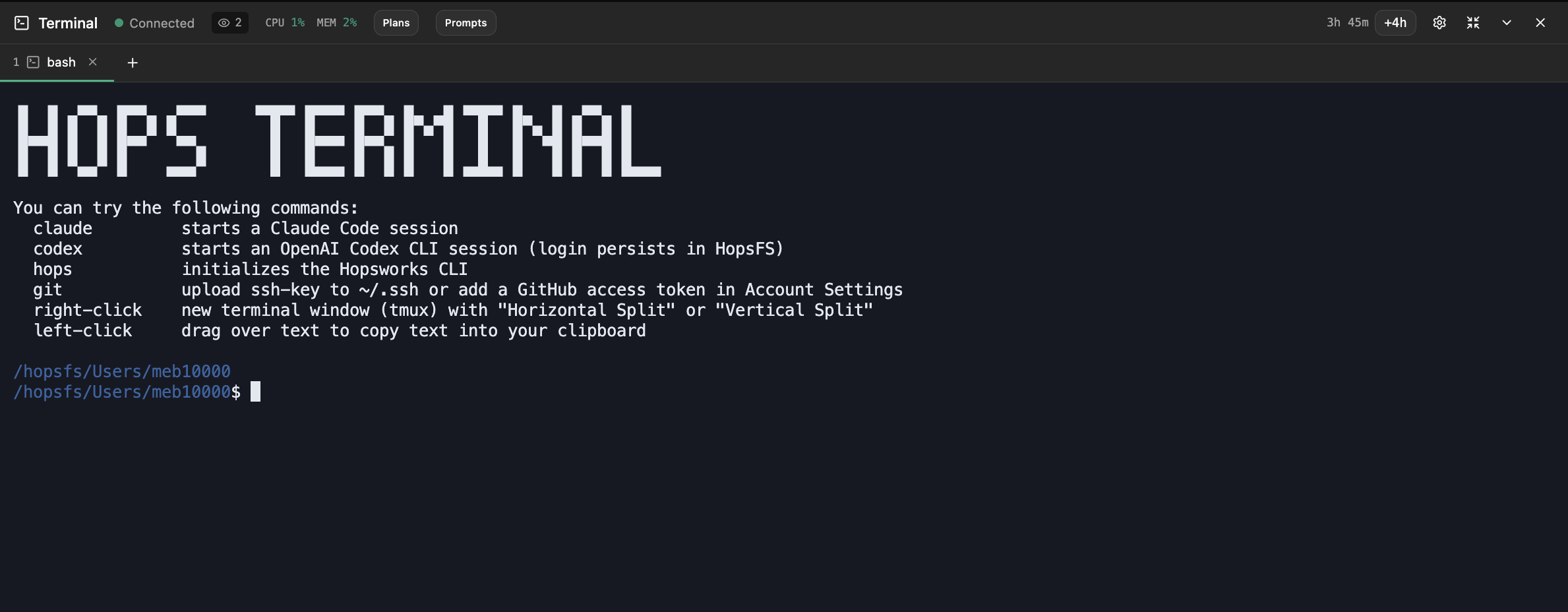
The session comes with tooling preinstalled:
hopsinitializes the Hopsworks CLI, already pointed at your project.gitworks against your configured Git providers; upload an SSH key to~/.sshor add a GitHub access token in Account Settings.claudestarts a Claude Code session andcodexstarts an OpenAI Codex CLI session; their logins persist in HopsFS across sessions.- Right-click opens a menu to split the terminal horizontally or vertically (tmux).
- Selecting text with the left mouse button copies it to your clipboard.
Session controls#
The panel header offers fullscreen, reconnect and collapse controls. Closing the panel does not stop the session; it keeps running until it expires or you stop it. Reopening the panel reconnects to the running session.