Sharing#
Introduction#
Hopsworks allows artifacts (such as feature groups and feature views) to be shared between projects. There are two main use cases for sharing features:
-
Cross-team collaboration: When multiple teams work on the same Hopsworks deployment, each team typically has its own set of projects. If team A wants to leverage features built by team B, team B can share their feature groups with team A's project.
-
Environment isolation: By creating separate projects for different stages of the development lifecycle (development, testing, and production), you can ensure that changes in the development project don't impact production features. At the same time, you can share production features to use them when developing new models or additional features.
Sharing the entire feature store#
You can share your project's entire feature store with another project, granting read-only access to all feature groups.
Step 1: Navigate to sharing settings#
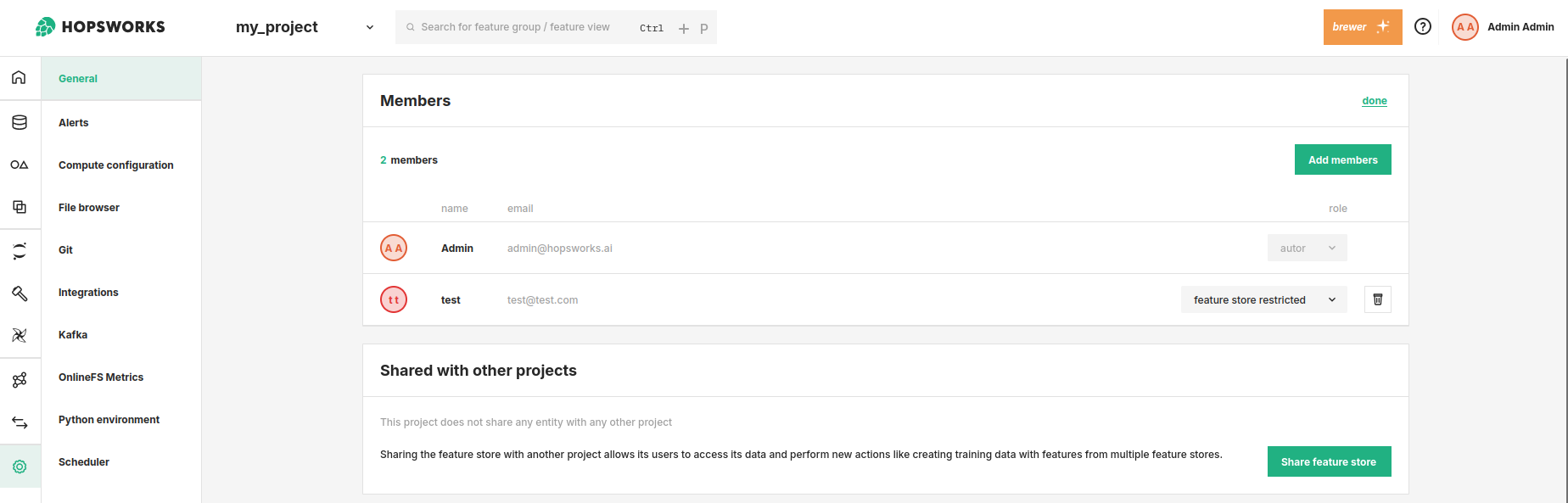
Open the project containing the feature store you want to share. In Project Settings, navigate to the Shared with other projects section.
Step 2: Share the feature store#
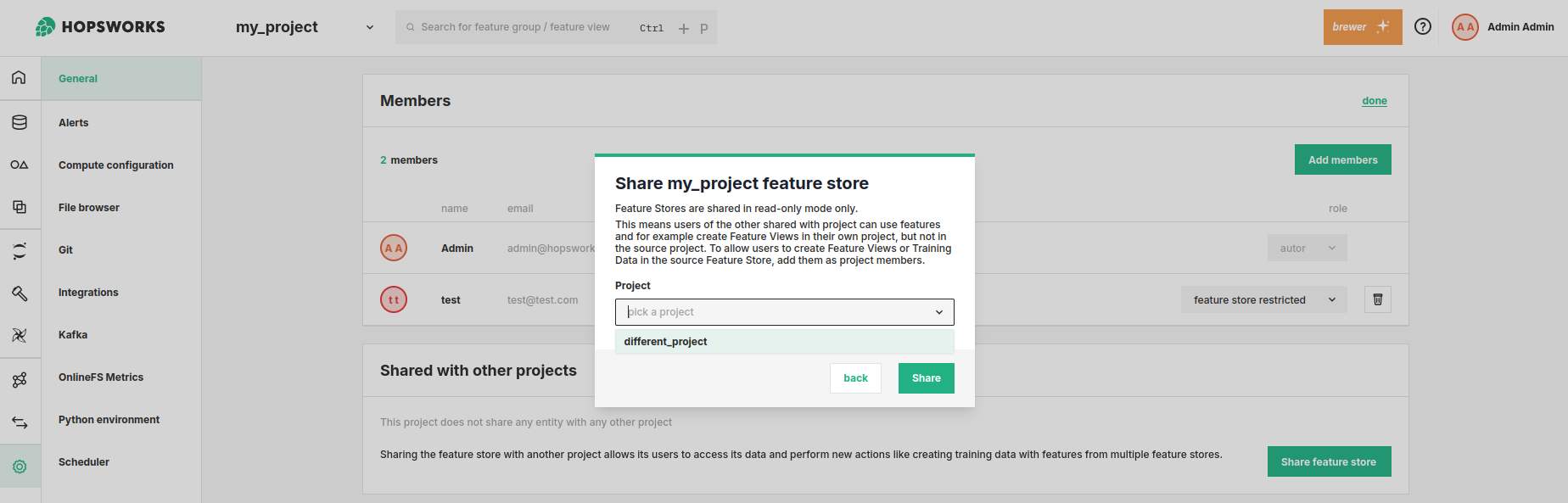
Click Share feature store to open the sharing dialog, then select the target project.
Read-only access
Shared feature stores are always read-only. Members of the target project cannot modify any data in the shared feature store.
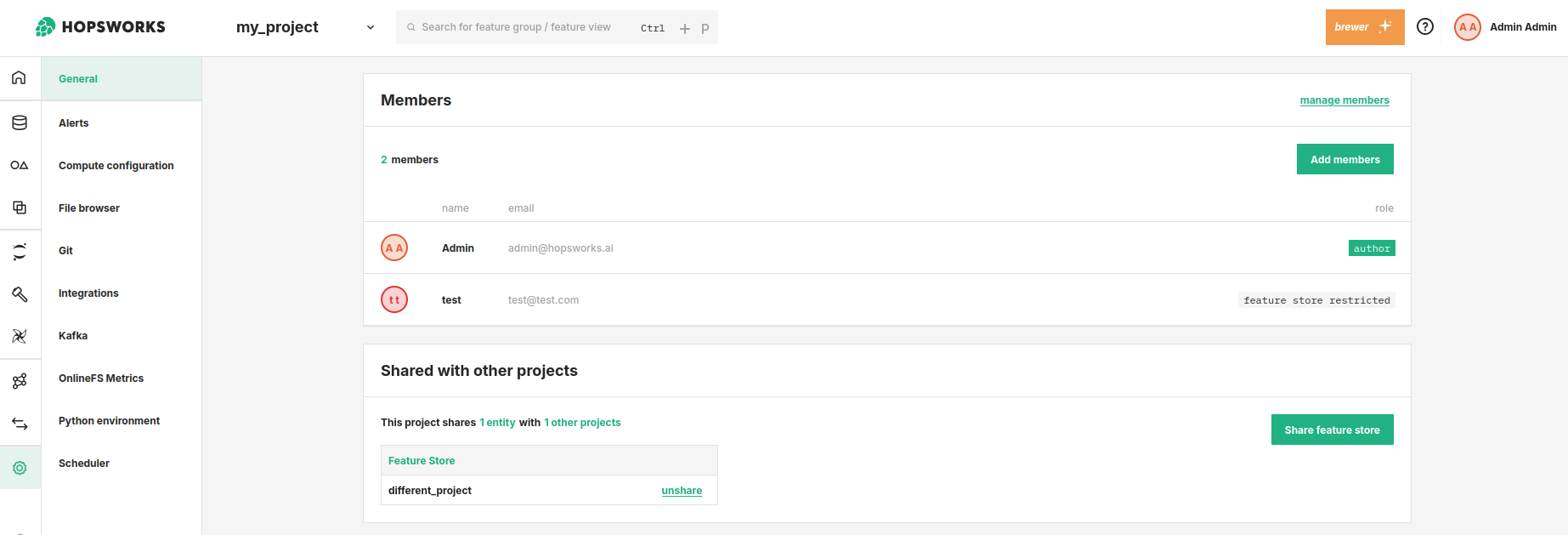
After clicking Share, the feature store appears under the Shared with other projects section.
Sharing a feature group with selected features#
For more granular control, you can share individual feature groups and select which features to expose. This allows you to share specific data without granting access to your entire feature store.
Step 1: Navigate to the feature group#
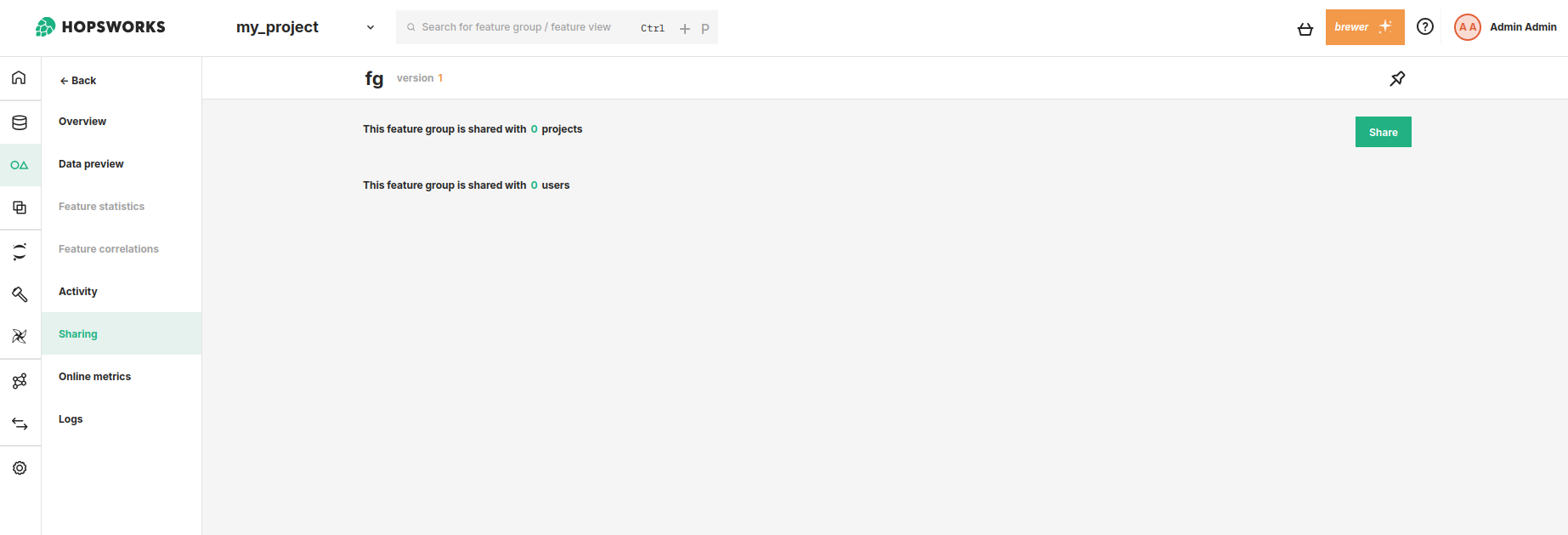
In the Feature Groups section, select the feature group you want to share and click the Sharing tab.
Step 2: Share the feature group#
Click Share to open the sharing dialog. You can share with either a project or an individual user with Feature store restricted role.
Select Share with Project, choose the target project, and select which features to share using Select the features to share.
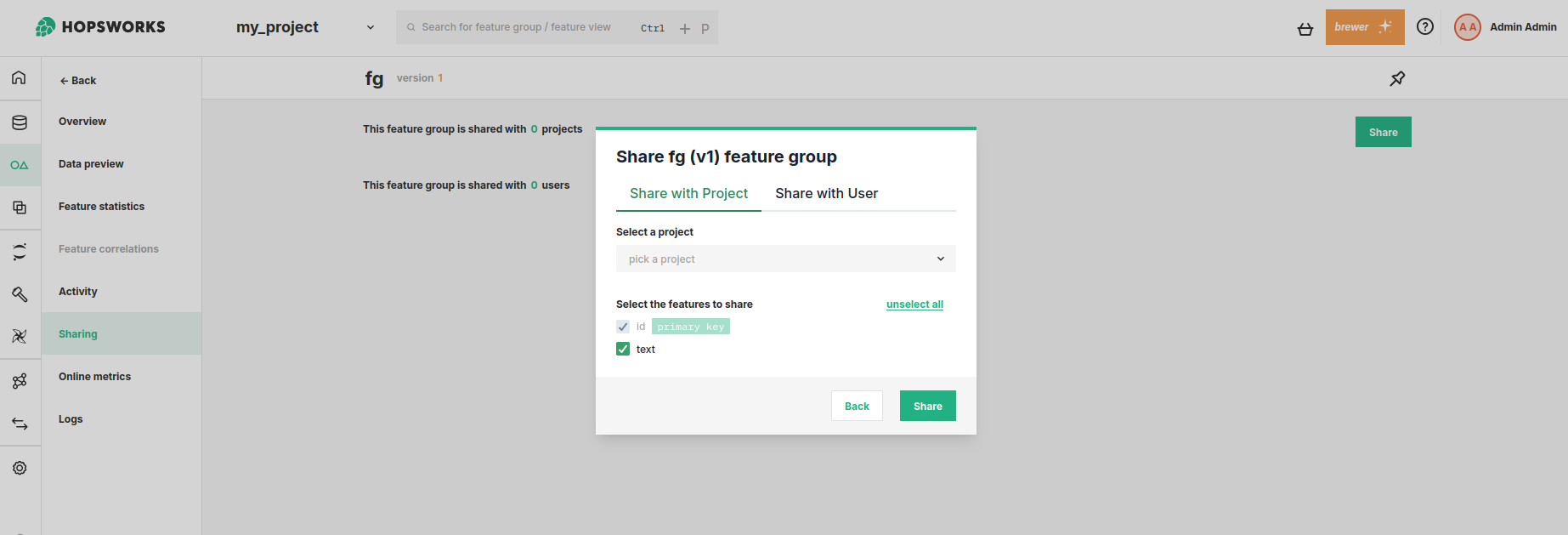
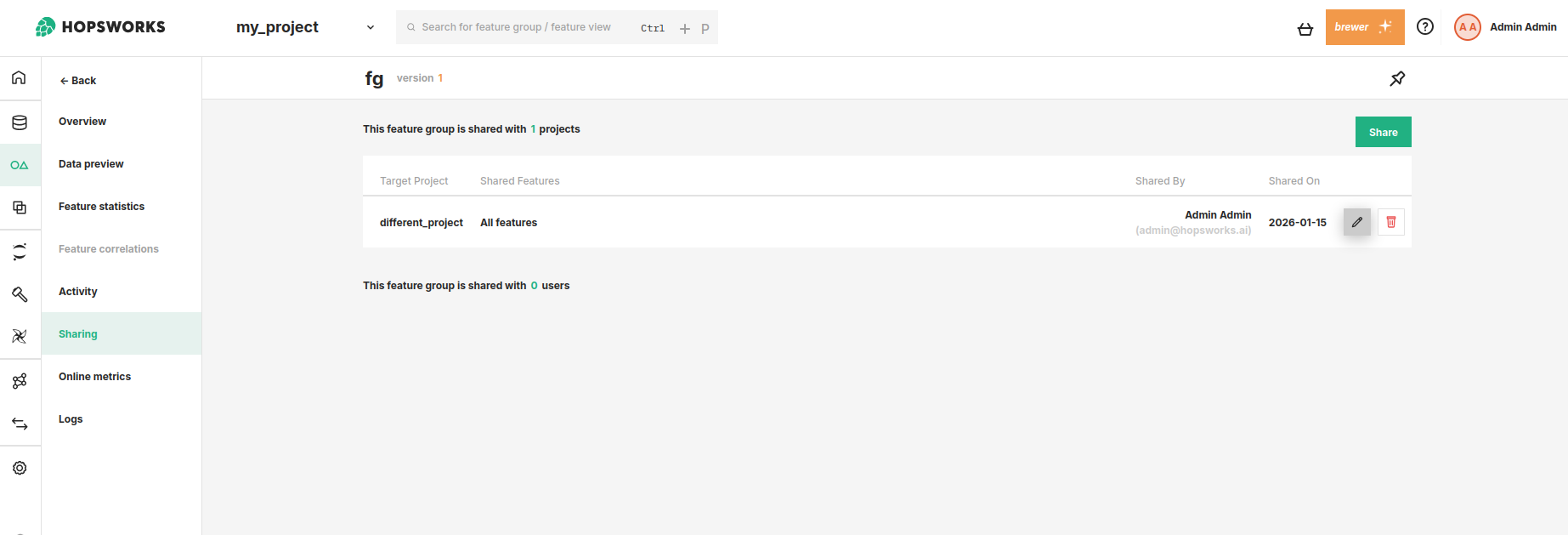
After clicking Share, the project appears under the This feature group is shared with X projects section.
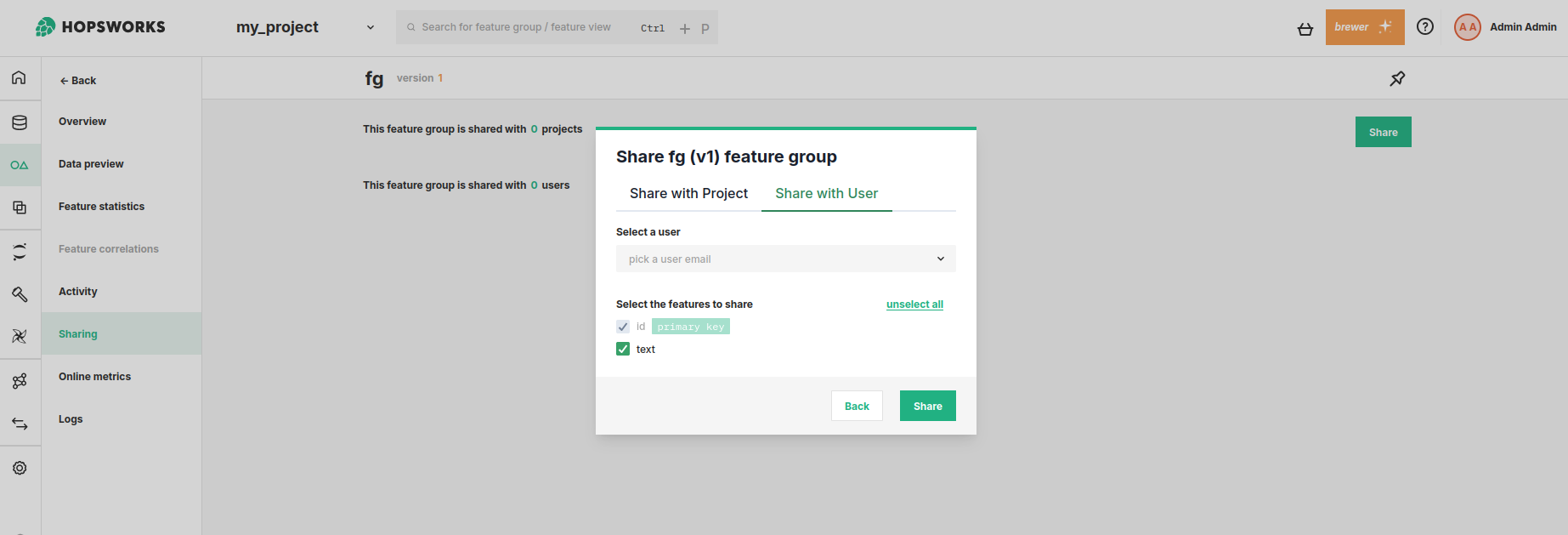
Select Share with User, choose a user with the Feature store restricted role, and select which features to share.
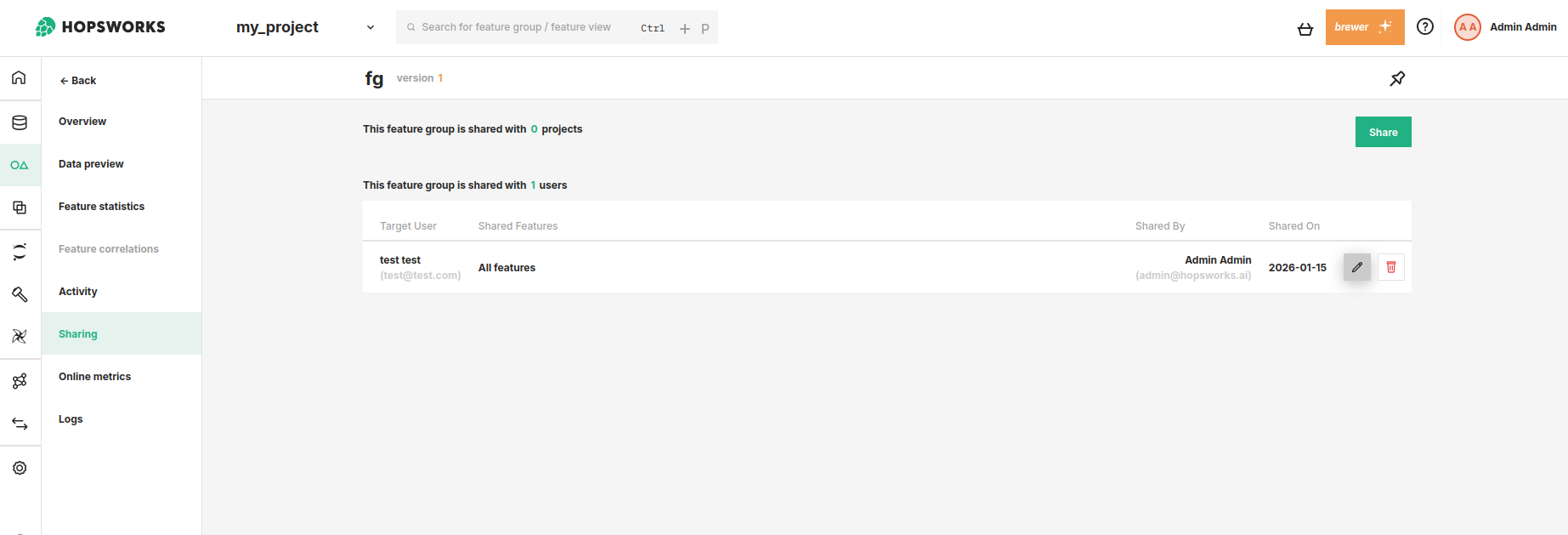
After clicking Share, the user appears under the This feature group is shared with X users section.
Using shared features#
Once features have been shared with your project, you can access them through the UI or the API.
Using the UI#
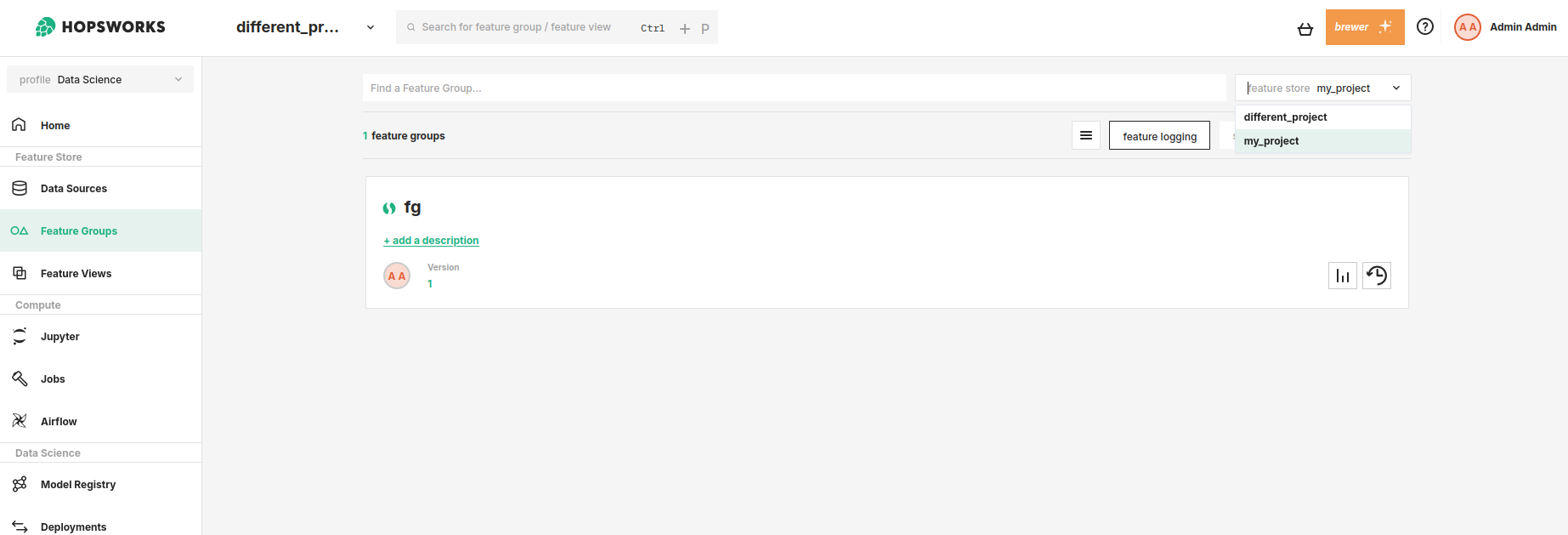
Navigate to the project that has access to shared features. In the Feature Groups section, use the dropdown in the upper right corner to select which feature store to view.
Using the API#
To access features from a shared feature store programmatically, retrieve the handle for the shared feature store using the Hopsworks API.
Step 1: Get feature store handles#
Use the get_feature_store() method with the name of the shared feature store:
import hopsworks


project = hopsworks.login()

# Get your project's feature store
project_feature_store = project.get_feature_store()

# Get the shared feature store by name
shared_feature_store = project.get_feature_store(name="name_of_shared_feature_store")
Step 2: Fetch feature groups#
# Fetch a feature group from the shared feature store
shared_fg = shared_feature_store.get_feature_group(
    name="shared_fg_name", version=1
)

# Fetch a feature group from your project's feature store
fg = project_feature_store.get_or_create_feature_group(
    name="feature_group_name", version=1
)