How To Install Python Libraries#
Introduction#
Hopsworks comes with several prepackaged Python environments that contain libraries for data engineering, machine learning, and more general data science use-cases. Hopsworks also offers the ability to install additional packages from various sources, such as using the pip package manager and public or private git repository.
In this guide, you will learn how to install Python packages using these different options.
- PyPi, using pip package manager
- Packages contained in .whl format
- A public or private git repository
- A requirements.txt file to install multiple libraries at the same time using pip
- npm packages, installed globally in the environment image and on
PATHfor jobs, Jupyter and the terminal
Conda, .egg and environment.yml installs have been removed
Installing from a conda channel, from an .egg distribution, or by importing an environment.yml file is no longer supported and is refused with an error naming the sources you can use instead. The base environments are built on a virtualenv that does not carry conda, so there is nothing for such an install to run.
Removing a package is not affected. An environment created before this change can still carry conda-sourced packages, and uninstalling those keeps working, so an upgraded environment does not strand packages you can no longer remove.
Notice
If your libraries require installing some extra OS-Level packages, refer to the guide custom commands guide on how to install OS-Level packages.
Prerequisites#
In order to install a custom dependency one of the base environments must first be cloned, follow this guide for that.
Step 1: Go to environments page#
Under the Project settings section select the Python environment setting.
Step 2: Select a CUSTOM environment#
Select the environment that you have previously cloned and want to modify.
Step 3: Installation options#
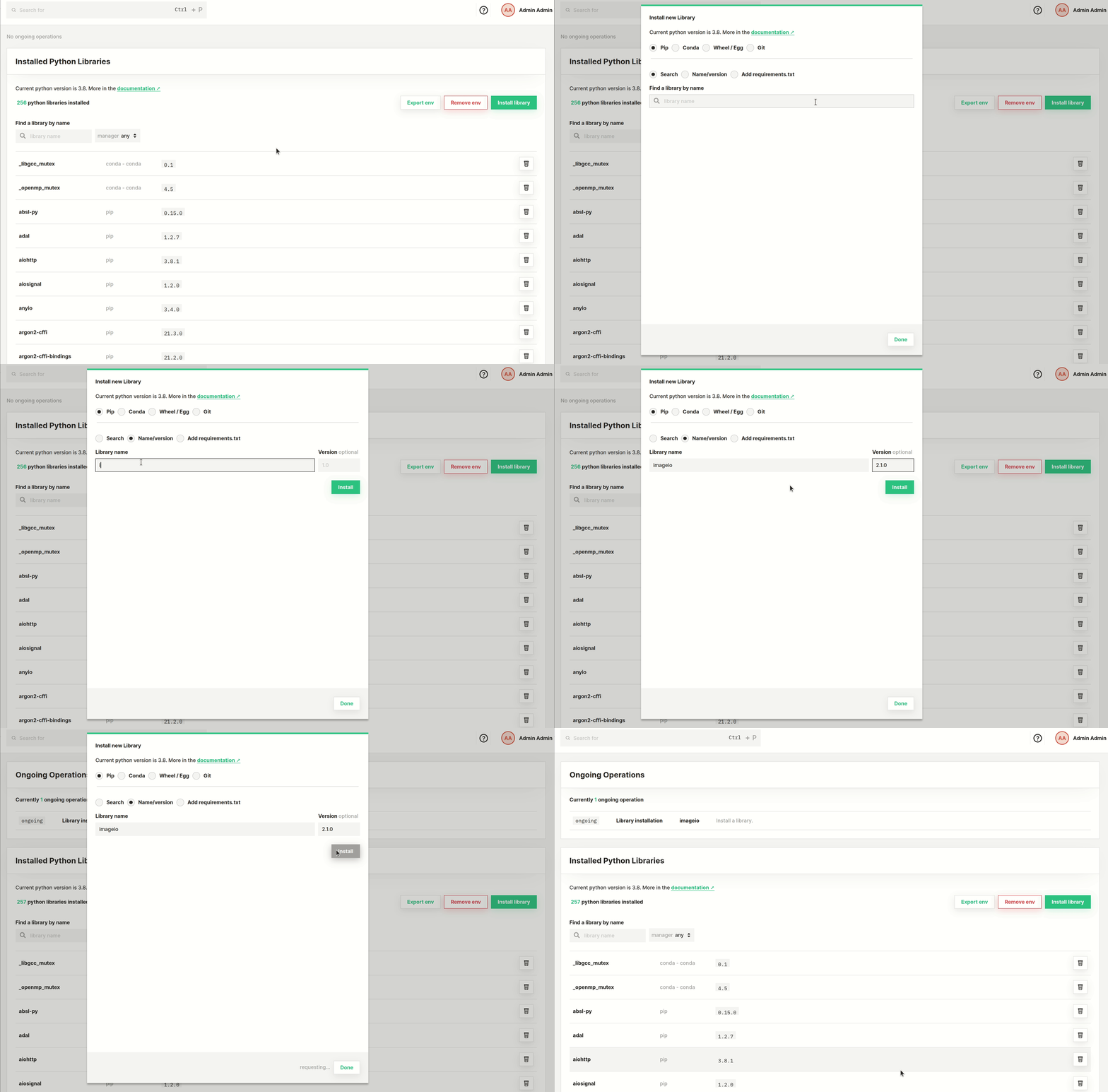
Name and version#
Enter the name and, optionally, the desired version to install.
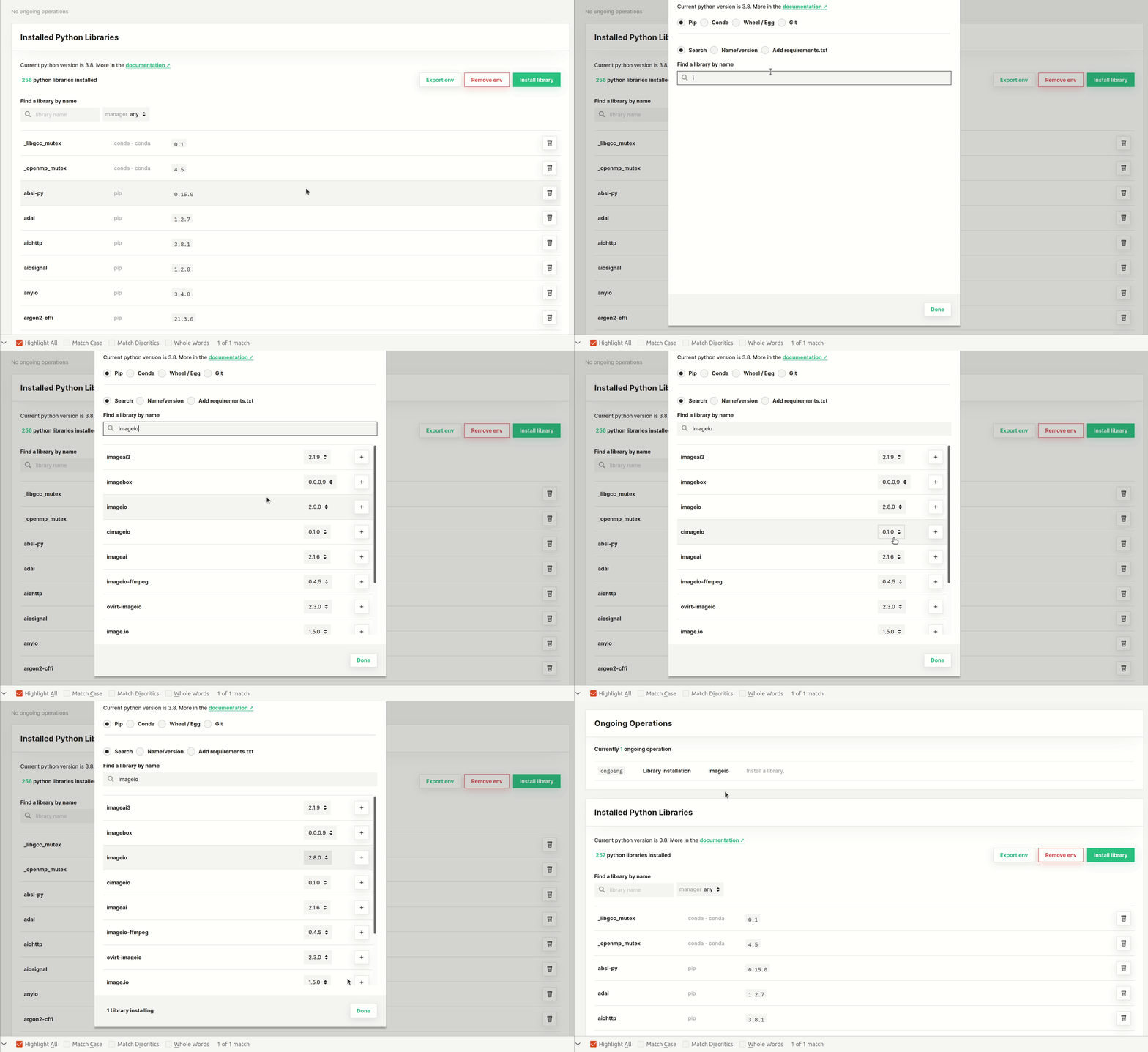
Search#
Enter the search term and select a library and version to install.
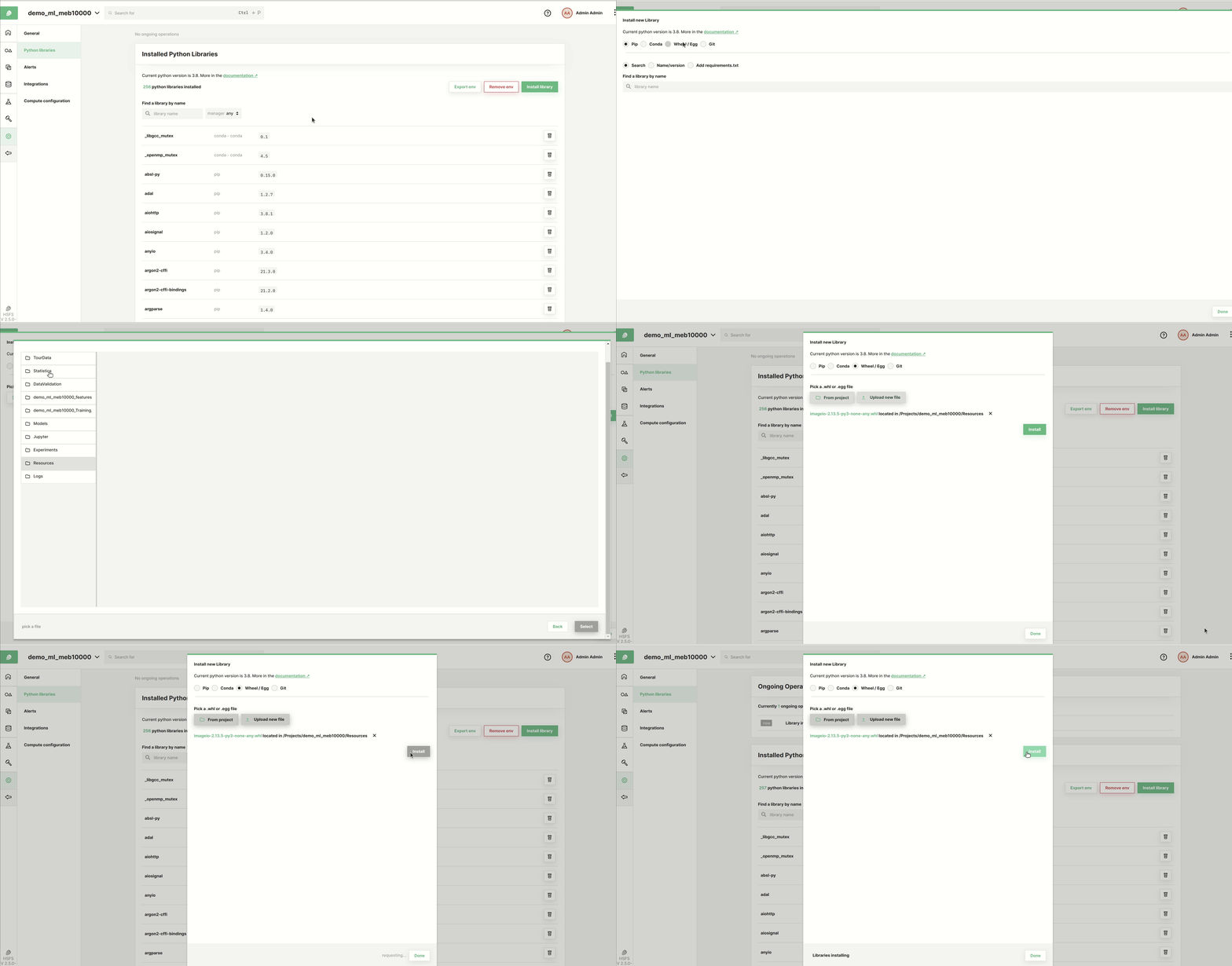
Distribution (.whl)#
Install a python package by uploading the corresponding package file and selecting it in the file browser.
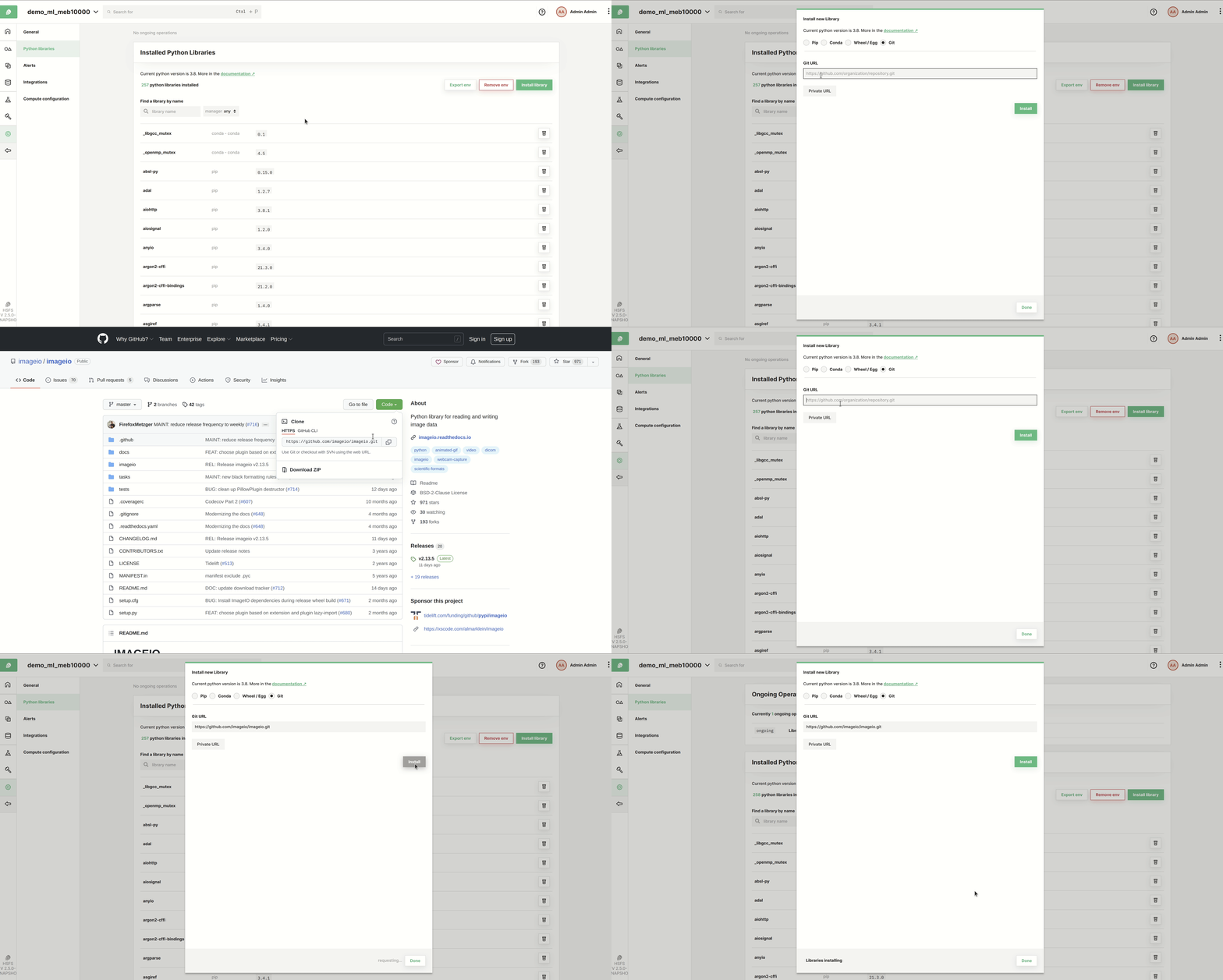
Git source#
The URL you should provide is the same as you would enter on the command line using pip install git+{repo_url}, where repo_url is the part that you enter in Git URL.
For example to install matplotlib 3.7.2, the following are correct inputs:
matplotlib @ git+https://github.com/matplotlib/matplotlib@v3.7.2
git+https://github.com/matplotlib/matplotlib@v3.7.2
In the case of a private git repository, also select whether it is a GitHub or GitLab repository and the preconfigured access token for the repository.
Keep your secrets safe
If you are installing from a git repository which is not GitHub or GitLab simply supply the access token in the URL. Keep in mind that in this case the access token may be visible in logs for other users in the same project to see.
npm packages#
Environments also carry npm packages, installed globally in the image so they are on PATH for jobs, Jupyter and the terminal. This is how you get a CLI tool or a JavaScript dependency into an environment.
Open the Installed npm Libraries tab beside the Python one and use Install npm package. A base environment is immutable, so on one the tab offers Clone env instead, and Install npm package opens the same clone dialog; the clone then opens on its npm tab with the install dialog up. Installed npm packages are listed there and can be uninstalled the same way, so an environment records what it carries rather than accumulating changes nobody can see.
The install list, the package.json and git imports below, and the SDK methods for them need Hopsworks 5.2 or later; the hopsworks package of the same release has them. The dialog builds one install list and installs it as one operation and one build. Fill the list from the Registry and package.json tabs, in any combination, then press Install; the Git repository tab installs on its own. While it runs, a list of several packages shows as a single entry named npm-install-... with the packages on its row; once the build has finished, the installed packages replace it in the listing, each with its own entry that can be uninstalled on its own. If the build fails, the single entry stays with the error, and retrying or deleting it applies to the whole list. A second install started while a build is running waits for it and then runs as its own build.
- Registry searches the configured registry for one package and version at a time and adds it to the list.
- package.json installs what a
package.jsondepends on, at exact versions. Pick the file from the project, or upload it from your computer into the project'sResources, and the lockfile next to it when there is one:package-lock.json,npm-shrinkwrap.json,yarn.lock(classic and Berry),pnpm-lock.yamlorbun.lock. Versions pinned inpackage.jsonstand; where a lockfile is given its recorded versions win, because they are what the project actually ran; ranges and dist-tags without a lockfile entry resolve to the newest matching release in the registry.devDependenciesare left out unless you tick Include devDependencies. Each dependency is shown with what it resolved to, or with the reason it was skipped: workspace siblings,npm:aliases, git, file and URL dependencies are not registry packages and cannot be installed this way. Optional dependencies start unticked. pnpm and Bun catalogs (catalog:specs) are resolved from the lockfile,pnpm-workspace.yamlor the rootpackage.json. A binarybun.lockbis not read; runbun install --save-text-lockfileto get abun.lockthe import can use. - Git repository reads the
package.jsonfiles of a repository at a branch, tag or commit, resolves them the same way against the nearest lockfile, and installs what resolved as soon as the repository has been read, as its own build. It skips the install list: make the choices before reading, with Include devDependencies, Include optionalDependencies and Also install the repository itself, which installs the repository as a package under the name itspackage.jsondeclares, pinned to the commit read. A monorepo installs the dependencies of every workspace; give the package.json path (for exampleapps/web) to read just that one, which also skips the rest of a large repository. A dependency that cannot be resolved stops the install with the reason, so apackage.jsonor lockfile can be fixed first. Private repositories use the git providers configured under your account settings. Installing the repository itself runs npm; a repository that needs yarn, pnpm or Bun to build is still attempted.
What the platform accepts:
| Versions | An exact version such as 1.3.0, or a dist-tag such as latest. Ranges like ^1.0.0 are refused, because they are not reproducible. |
| Scoped names | Supported, for example @tsconfig/node20. |
| Flags | A fixed set: --ignore-scripts, --legacy-peer-deps, --no-audit, --no-fund, --no-optional, --strict-peer-deps. Anything else is refused and the message lists what is allowed. |
Installing by dist-tag records the version the tag resolved to once the build finishes, so latest becomes the concrete version in the listing rather than staying as latest.
A package the base image already ships cannot be installed over, and cannot be uninstalled. Clone an environment and install your own version there instead.
Packages come from the registry the cluster is configured to use. Ask your administrator if you need an internal registry; it is a cluster-wide setting rather than a per-environment one.
From the Python SDK, the same three paths are install_npm, install_npm_from_package_json and install_npm_from_git:
import hopsworks


project = hopsworks.login()
env = project.get_environment_api().get_environment("my_custom_environment")

# A list, one build.
env.install_npm(["express@4.19.2", "lodash@4.17.21"], flags=["--no-fund"])

# A package.json and its lockfile, local or in the project; devDependencies opt in.
env.install_npm_from_package_json("package.json", lockfile_path="pnpm-lock.yaml")

# A repository's dependencies, plus the repository itself pinned to the commit.
env.install_npm_from_git(
    "https://github.com/acme/mytool", ref="main", install_repository=True
)

# One package of a monorepo, by the path of its package.json.
env.install_npm_from_git("https://github.com/acme/mono", path="packages/cli")
resolve_npm_package_json and inspect_npm_git return what would be installed without installing it.
Same name in both ecosystems
A name can exist on both PyPI and npm. The two are tracked separately, so installing requests from npm does not touch the Python package of the same name, and each is listed under its own tab.
Going Further#
Now you can use the library in a Jupyter notebook or a Job.